Forecast retail sales by hand
Time: about 45 minutes · You need: ParleML running (Run ParleML). No agent needed. You'll end with: two 12-month store-sales forecasts compared fairly, an explanation of why the better one wins, and that forecast registered as a model.
You do every step yourself. You check whether the data can be forecast at all, build two forecasts with different engines, find out why the better one is better, and register it for review.
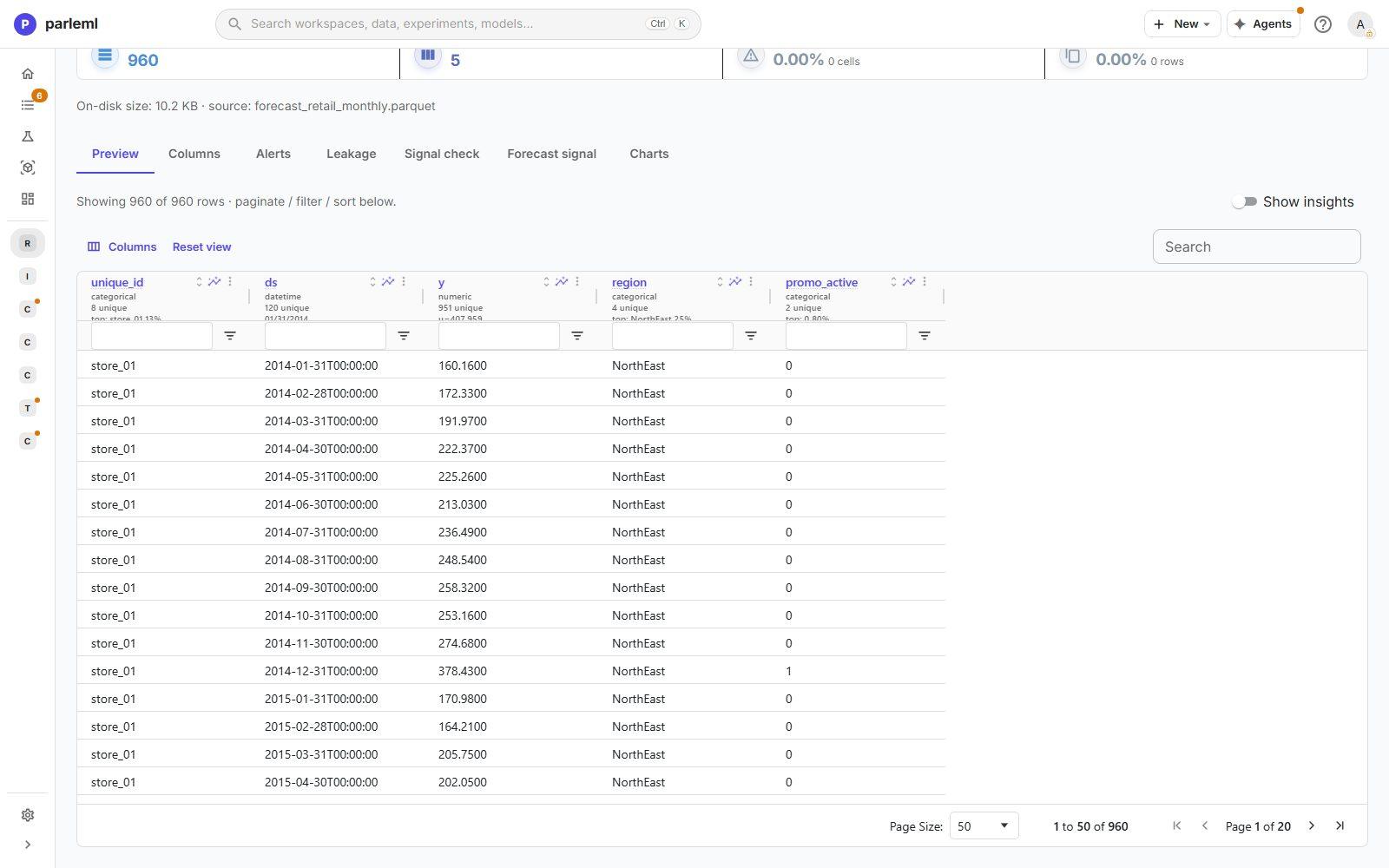
You'll use Retail sales, an included synthetic sample: monthly sales for 8 stores in 4
regions, January 2014 to December 2023, 960 rows. Besides the date (ds), the store
(unique_id) and sales (y), each row has the store's region and a promo_active flag for
months with a promotion. Those two columns turn out to matter.
A recorded run
The numbers below come from one recorded run. A rerun can pick slightly different models, but the shape of the result holds. Select any screenshot to see it at full size.
1. Open the sample
- On Home, under Start from a sample, choose Retail sales. Once you have workspaces, the samples are behind the Sample datasets button on Home.
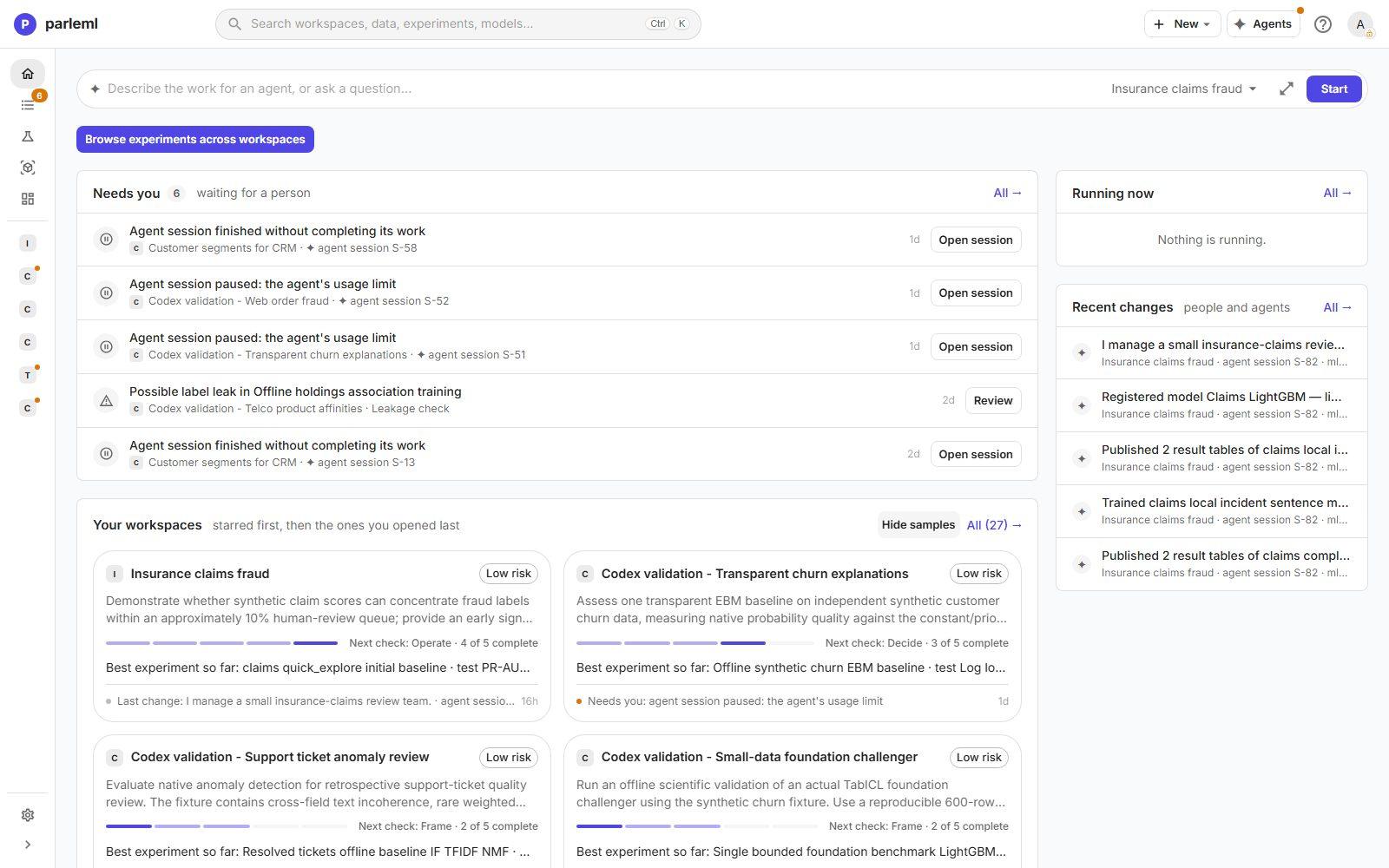
ParleML creates a Retail sales workspace and opens the forecast_retail_monthly dataset.
Nothing is profiled yet: the column headers say no EDA.
2. Profile the data
-
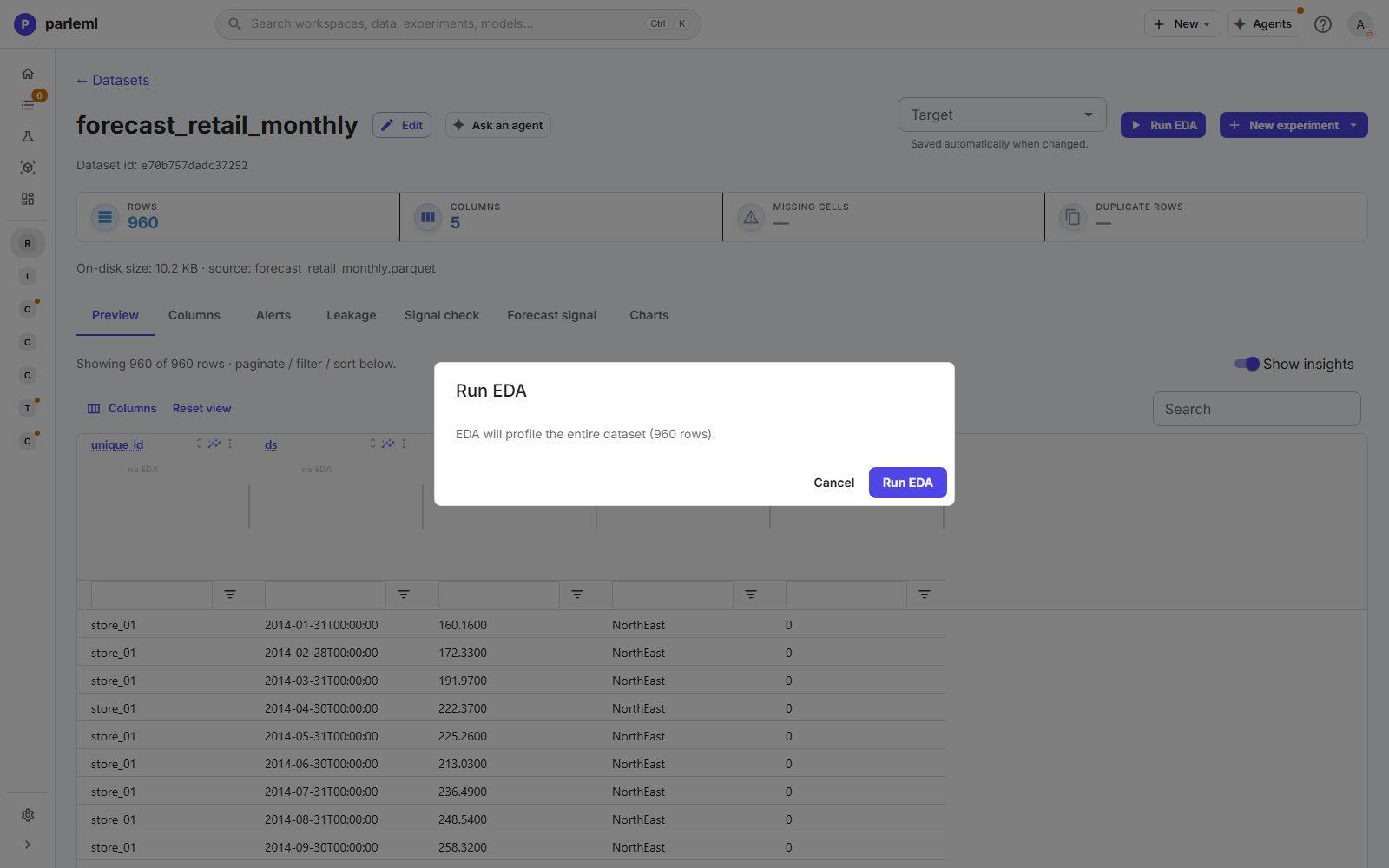
Choose Run EDA. For a table this small the profile reads every row, in a few seconds. The quality tiles show 0 missing cells, 0 duplicate rows.
-
In Preview, turn on Show insights. Each column header gains a small histogram or a list of top values.
-
Select the
yheader to open its Insight.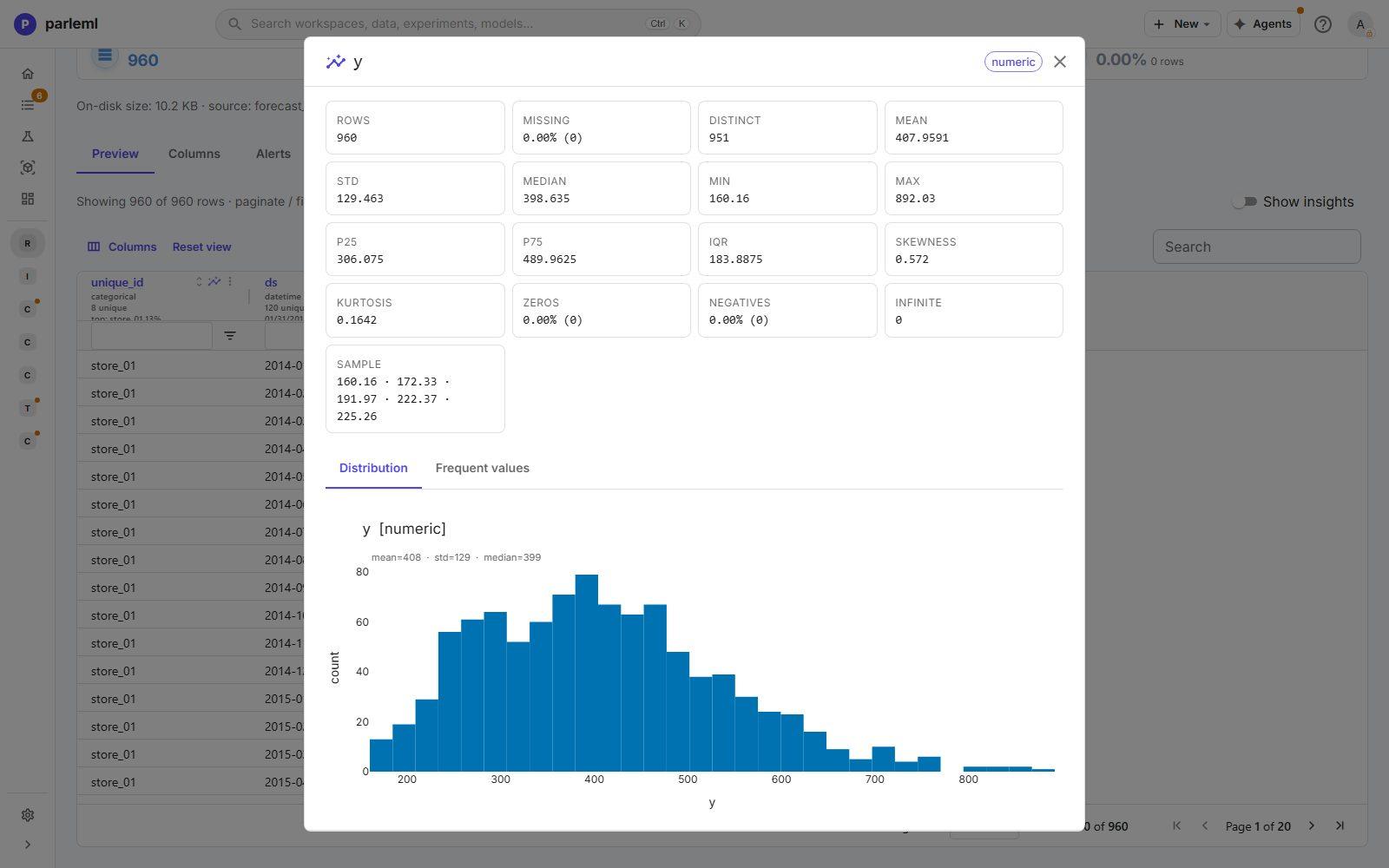
Monthly sales average 408 (median 399) and range from 160 to 892, with a mild right skew (0.57). There are no zeros or negatives, so nothing needs cleaning.
3. Set the column roles
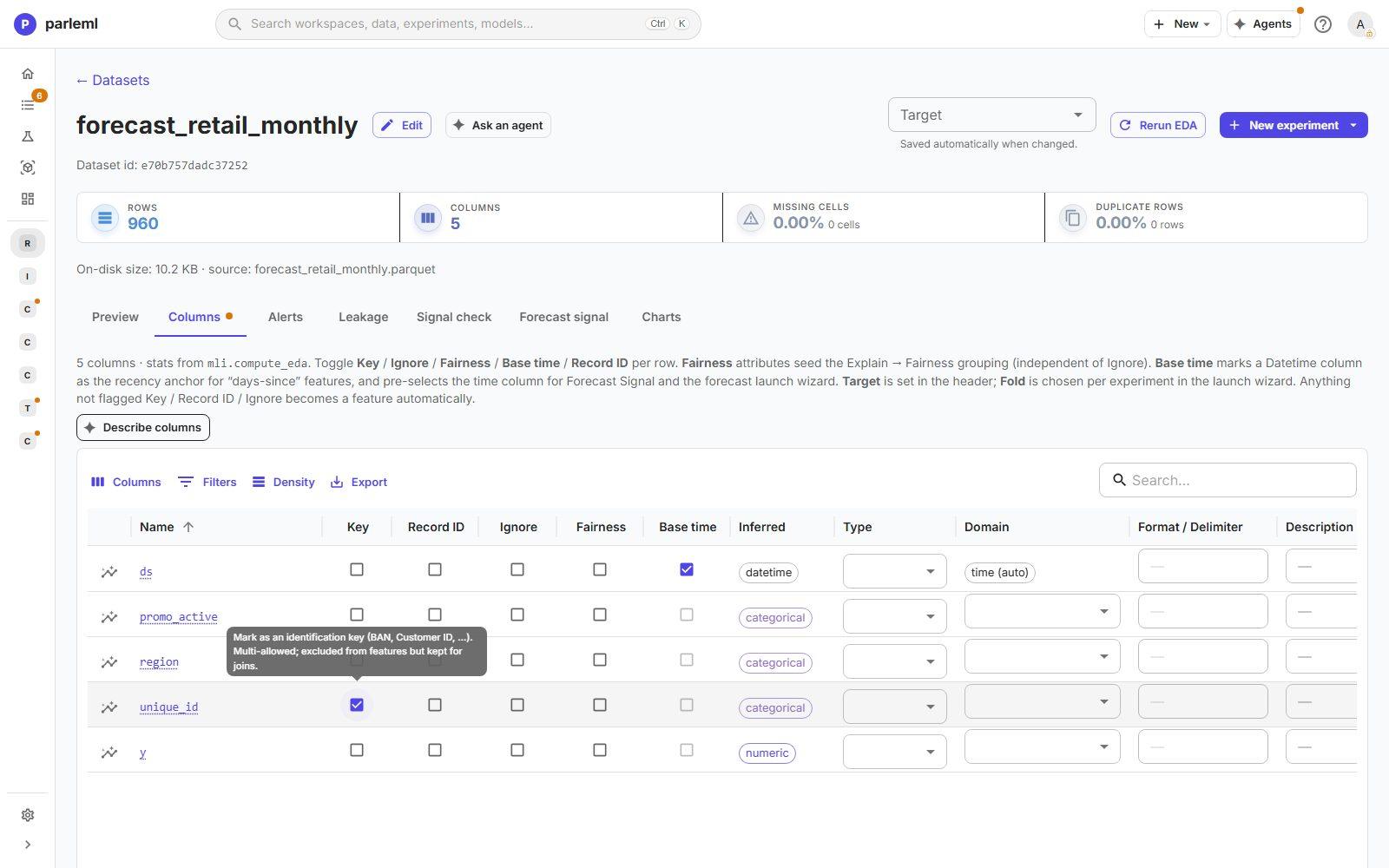
- Open Columns.
- Tick Base time on
ds. It becomes the time axis, so the forecast tools preselect it. - Tick Key on
unique_id. It identifies a store; it is not something to learn from. - Choose Save overrides.
The domain of ds shows time (auto), derived from its datetime type.
4. Check that there is something to forecast
- Open the Forecast signal tab and choose
yas the target. -
Under Advanced, choose
unique_idas the series. The time column is alreadyds.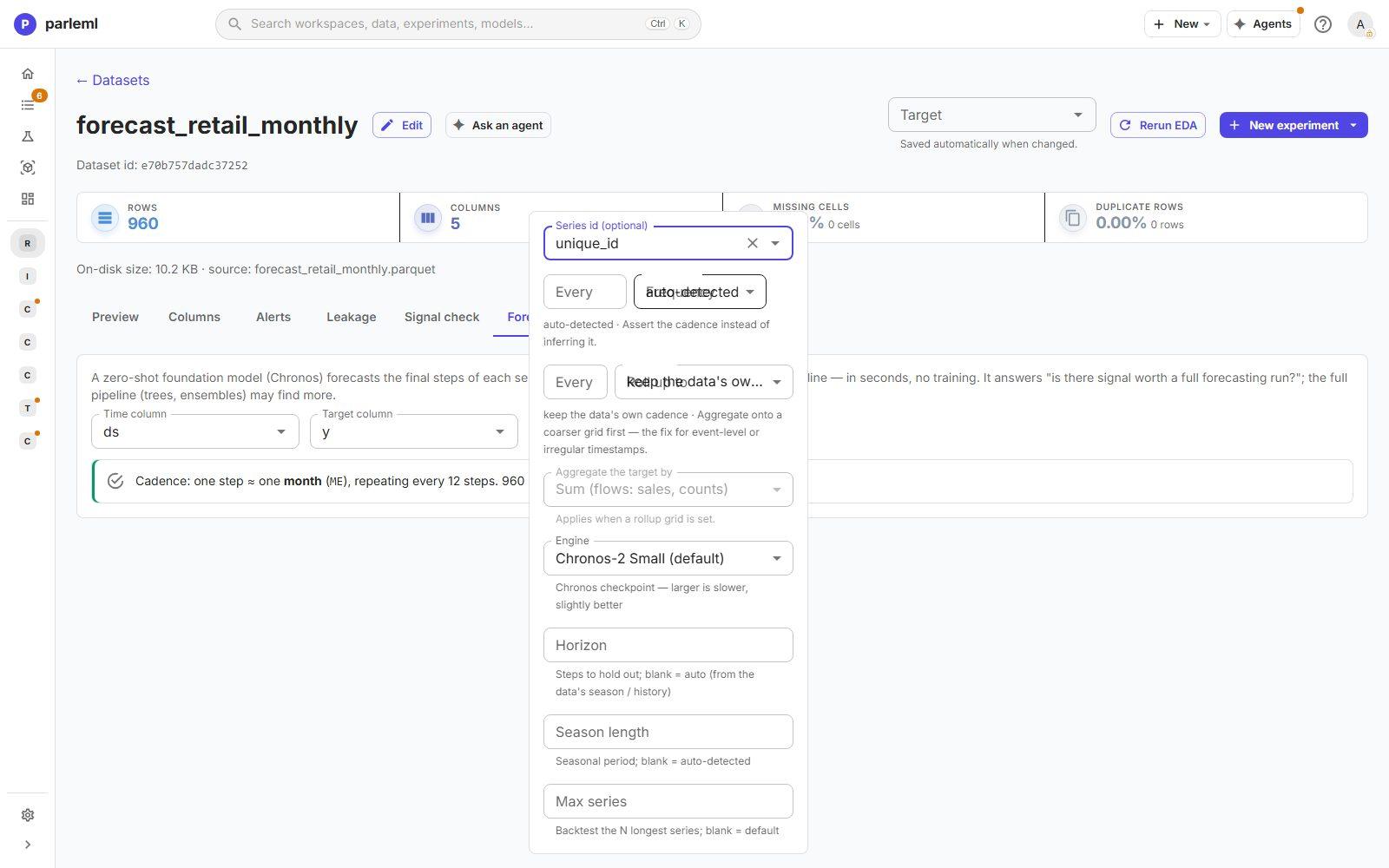
-
Choose Check forecastability.
A zero-shot forecasting model (Chronos, which forecasts without training) predicts the last stretch of every store. ParleML scores it against a seasonal-naive forecast: same month last year.
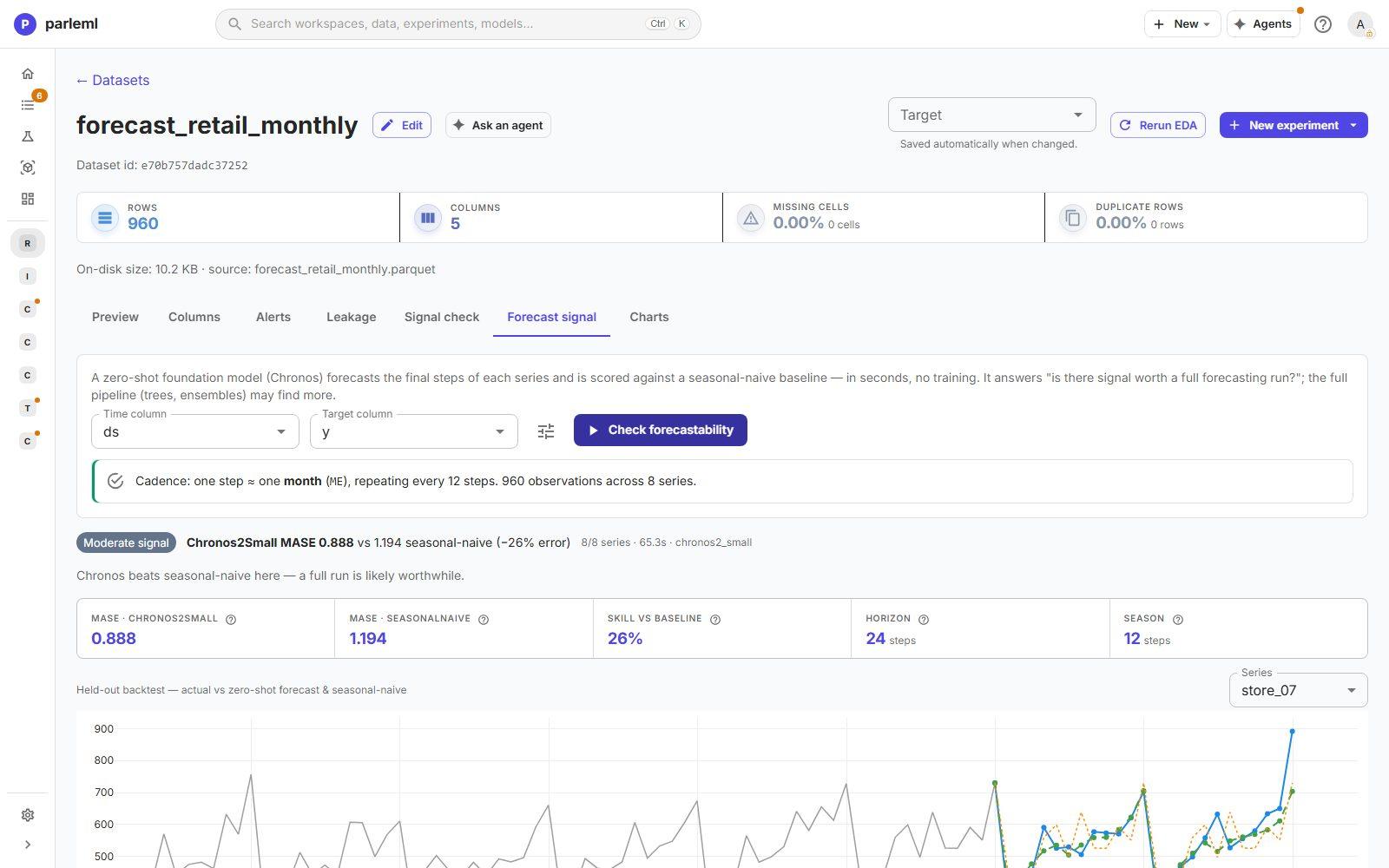
ParleML first reports what it found: one step ≈ one month, repeating every 12 steps, 960 observations across 8 series. Then the verdict, Moderate signal:
- Chronos MASE 0.888 against 1.194 for seasonal-naive, 26% less error, across all 8 series in about a minute.
- Chronos beats seasonal-naive here: a full run is likely worthwhile.
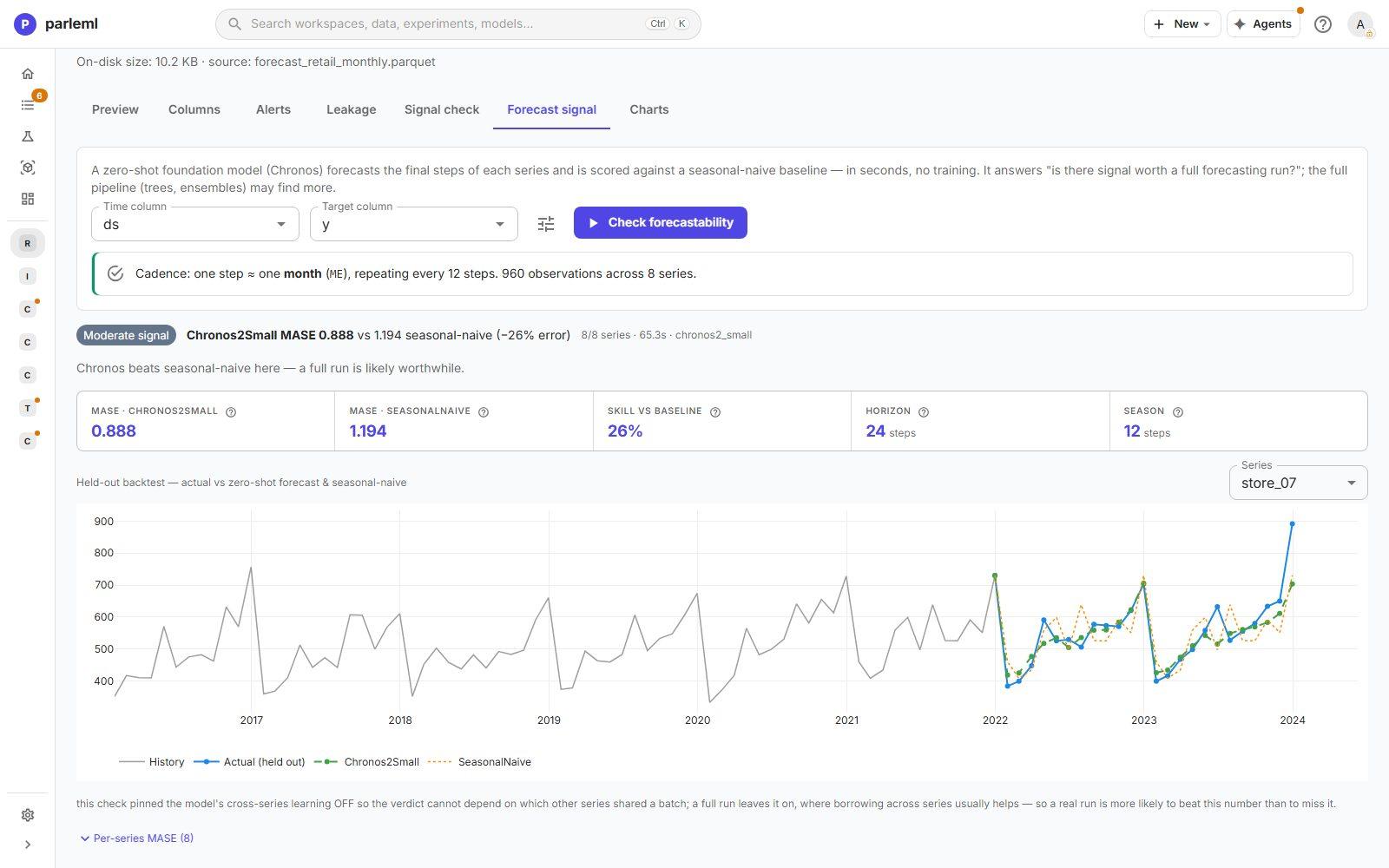
The backtest chart shows one store at a time: its history, the held-out actual values and both forecasts. A table lists MASE for every store.
MASE
MASE is the forecast error divided by the error of a naive forecast on the training data. Below 1 beats it; lower is better. It compares fairly across series of different size, which is why ParleML selects on it.
5. Build a first forecast: a statistical race
- Choose Experiments → New experiment → Forecast.
-
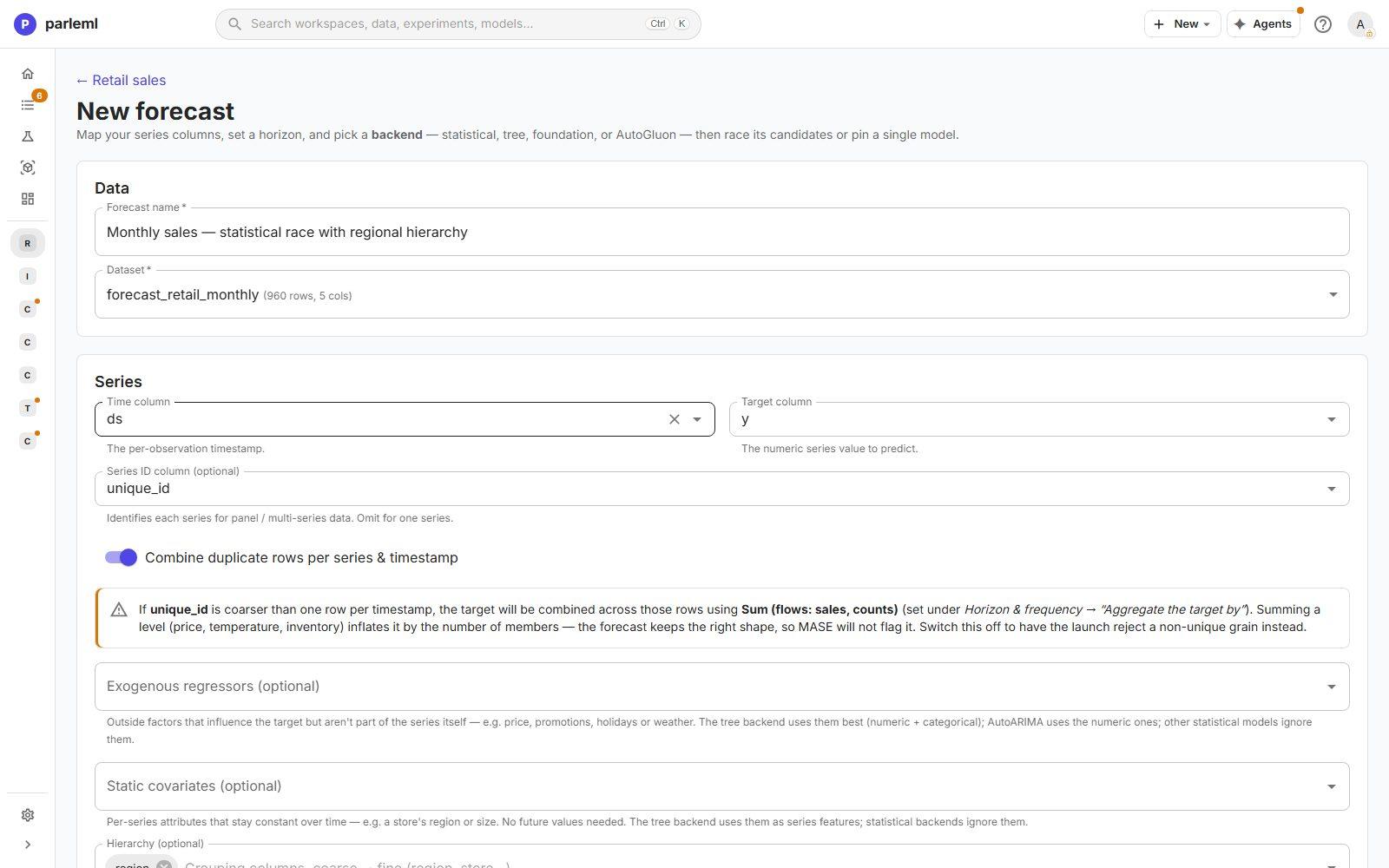
Data and series. Name the run Monthly sales — statistical race with regional hierarchy. The dataset is preselected. Set Time column to
ds(pre-filled from the base time), Target column toy, and Series ID column tounique_id.Combine duplicate rows per series & timestamp is on, and the form explains the trade-off of summing.
-
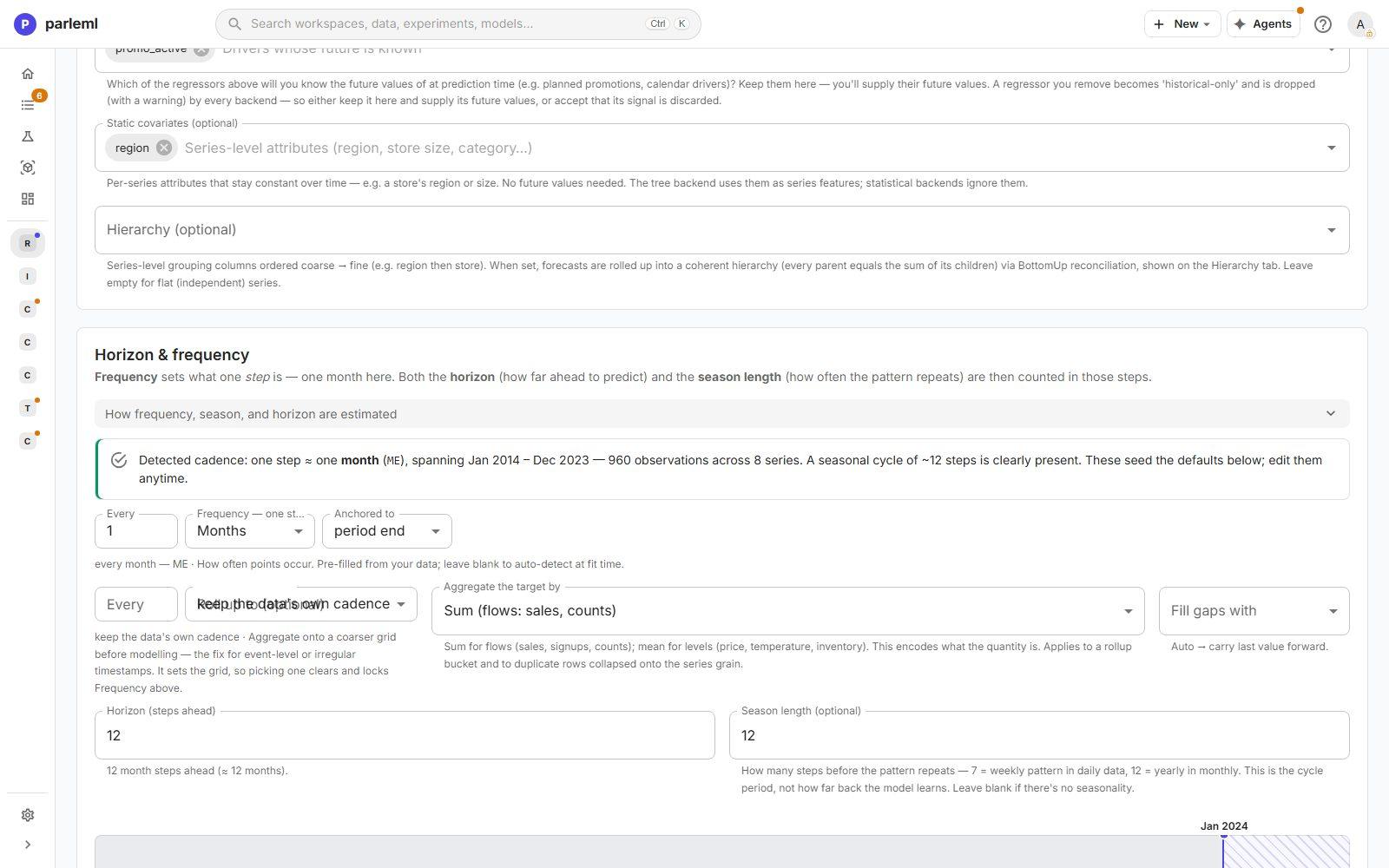
Hierarchy. Add
region. The store forecasts in each region are then reconciled, so each region's forecast equals the sum of its stores. -
Horizon and frequency. ParleML repeats its finding (one step ≈ one month, Jan 2014 to Dec 2023, a seasonal cycle of about 12 steps is clearly present) and pre-fills the frequency. Set Horizon to 12 (a year ahead) and Season length to 12. A timeline under the fields shows the history and the forecast period.
-
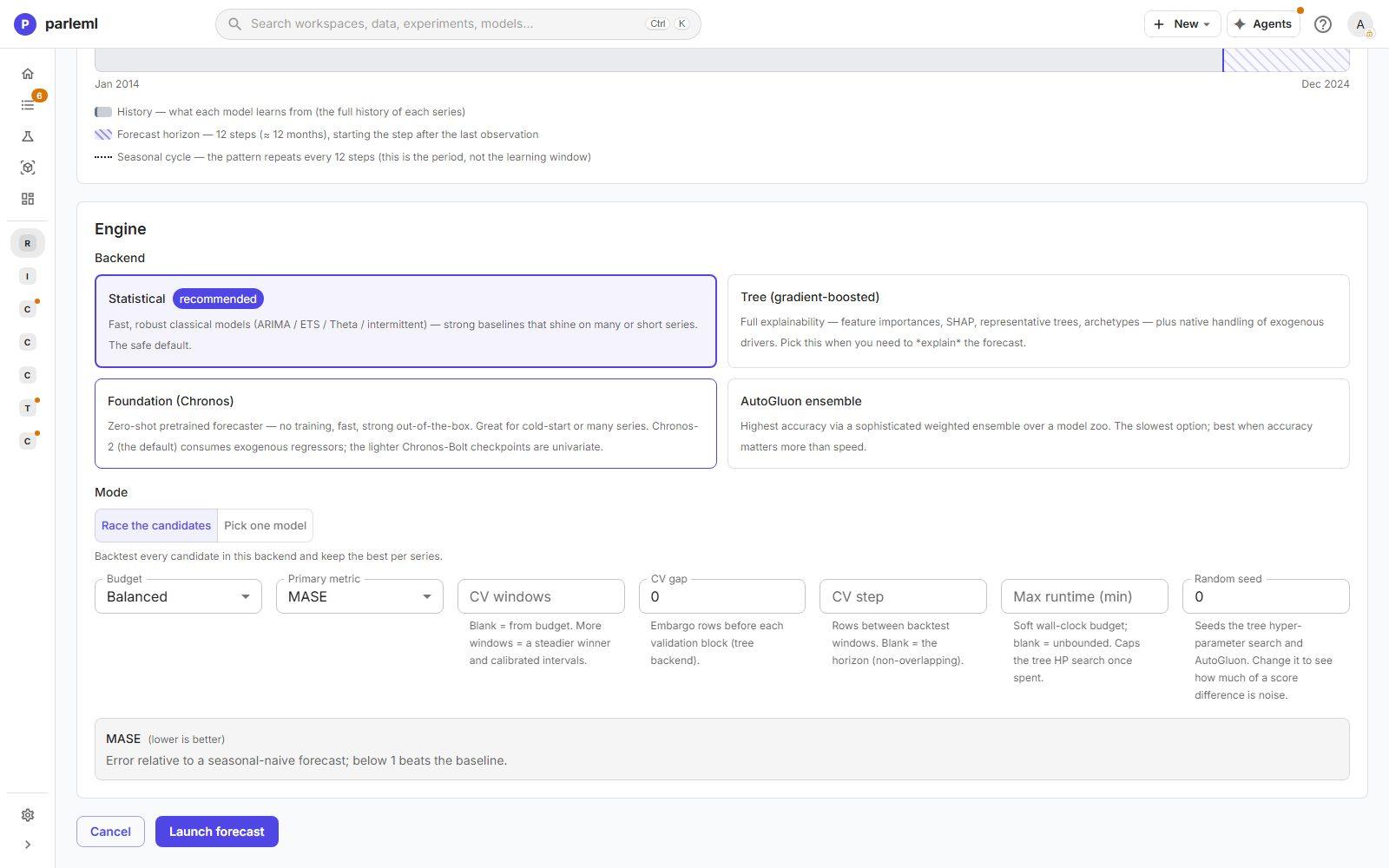
Engine. Keep Statistical (recommended) and Race the candidates. Every classical model in the backend (ETS, ARIMA, Theta, CES and the naive baselines) is backtested on every store, and the best one is kept for each store.
-
Choose Launch forecast. The run takes a few minutes, with live progress on its page.
6. Read the statistical result
- Open Overview. The headline: 8 series, 12 steps ahead, MASE on the held-out test 0.951. 4 series need attention.
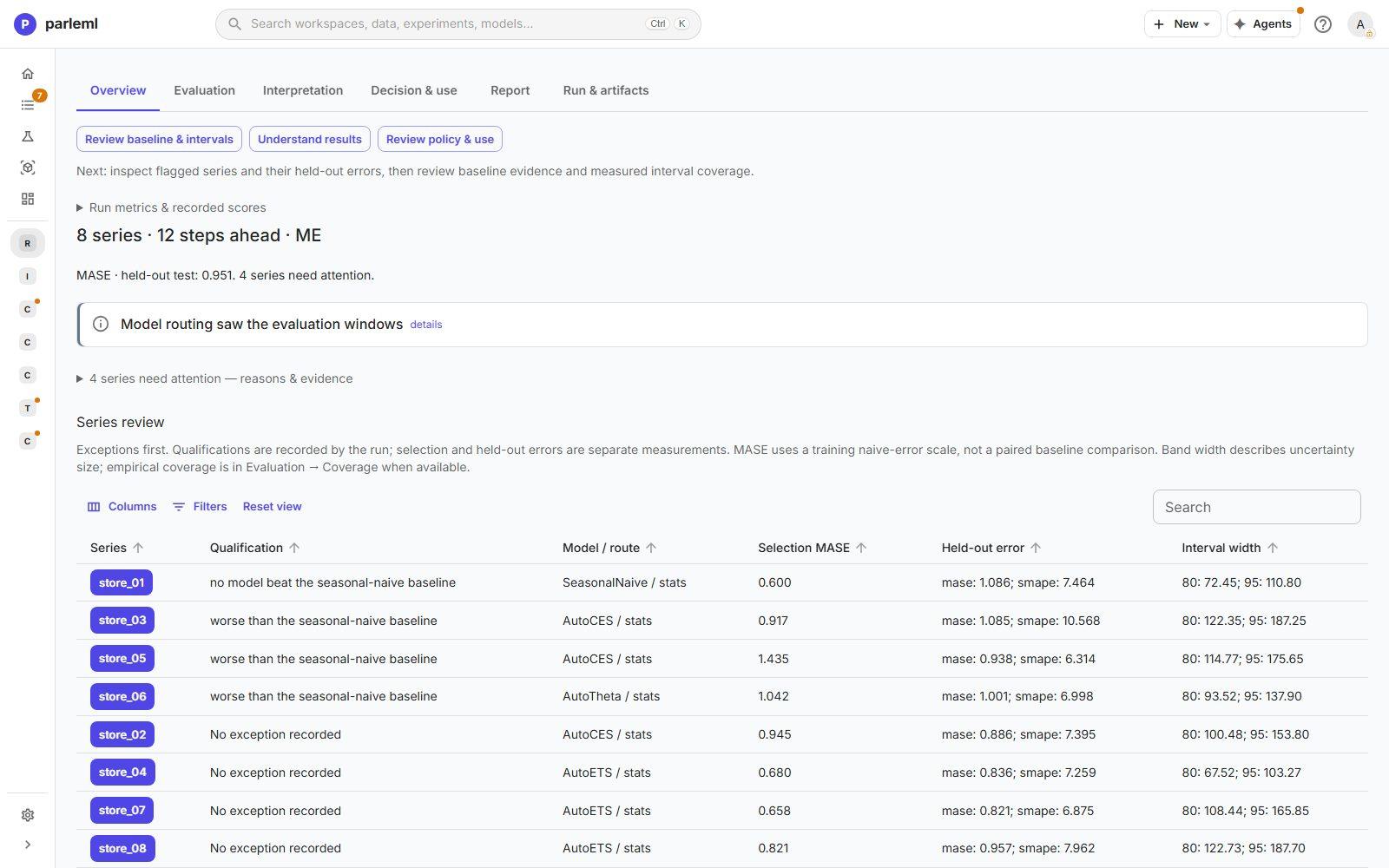
The Series review lists the exceptions first:
- For
store_01, no model beat the seasonal-naive baseline, so the naive forecast was kept. store_03,store_05andstore_06are worse than the seasonal-naive baseline on the held-out year.
Each row gives the winning model, the selection MASE, the held-out error and the interval widths. A held-out MASE just under 1 is barely better than repeating last year. That is an honest answer, and it tells you to look further.
-
Open Evaluation to see why:
- Model selection: a heatmap of every candidate's MASE on every store. Stores pick different winners: ETS for some, CES or Theta for others.
- Group metrics: the best and worst stores.
- Coverage: whether the prediction intervals contain the truth as often as they claim.
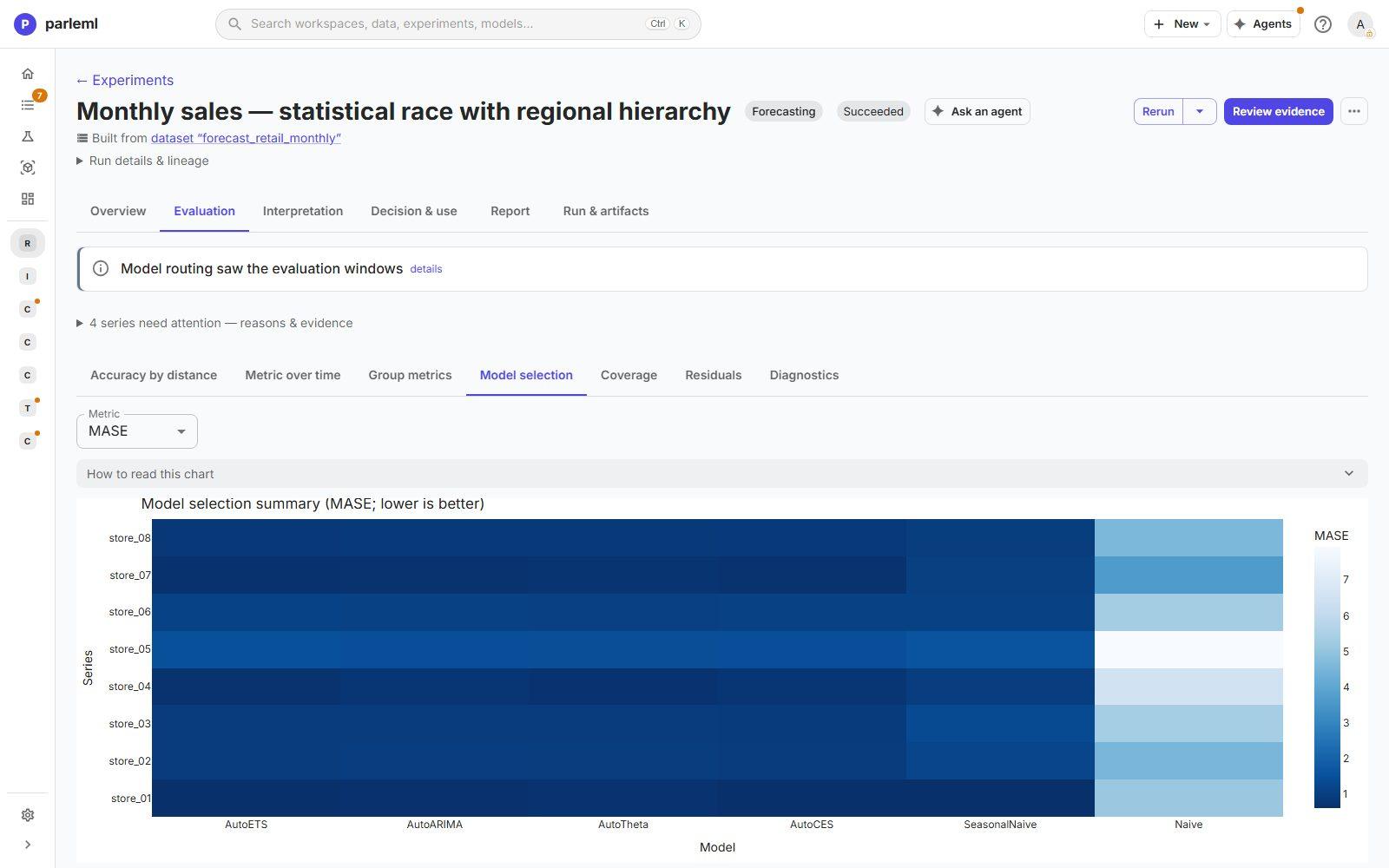
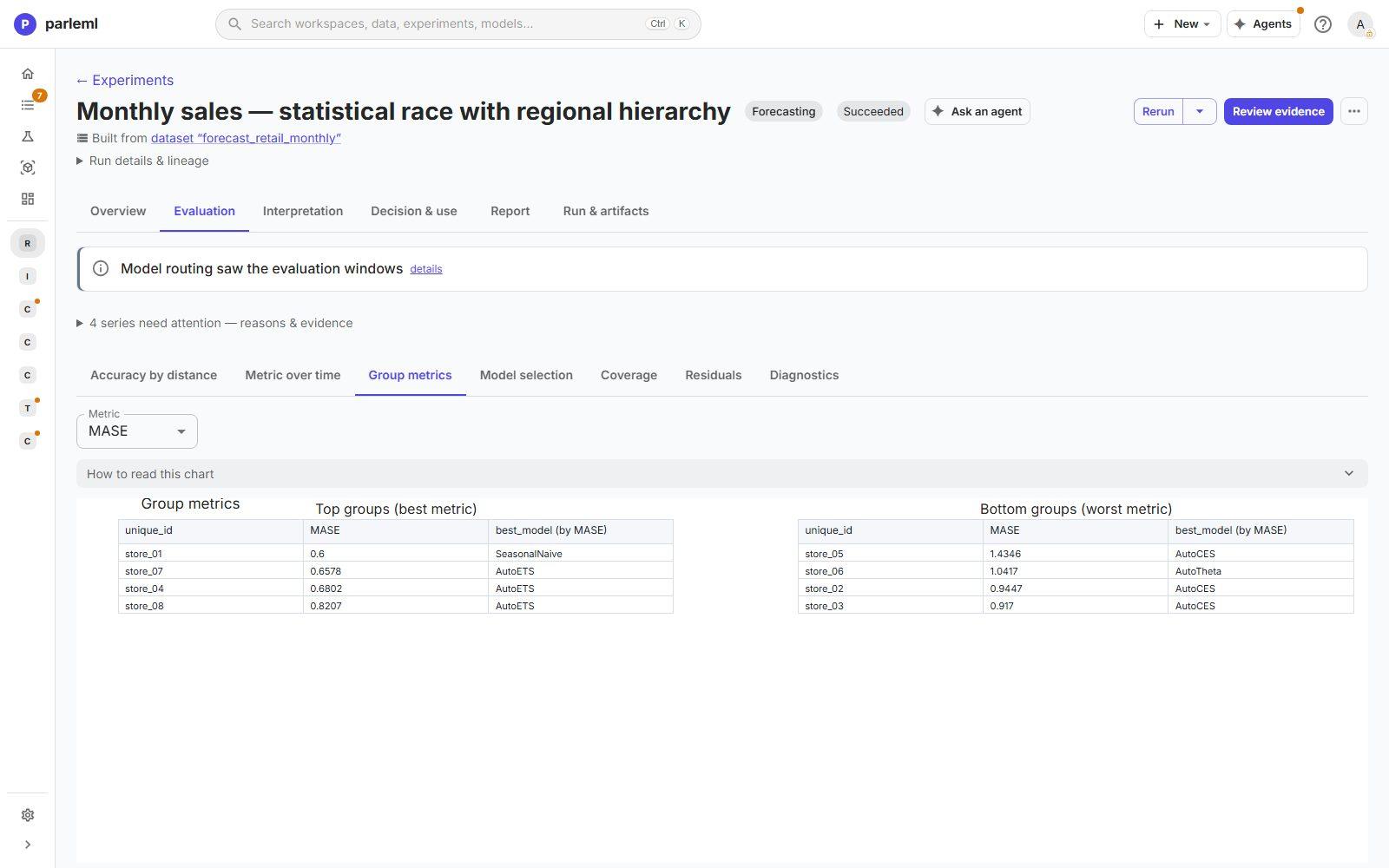
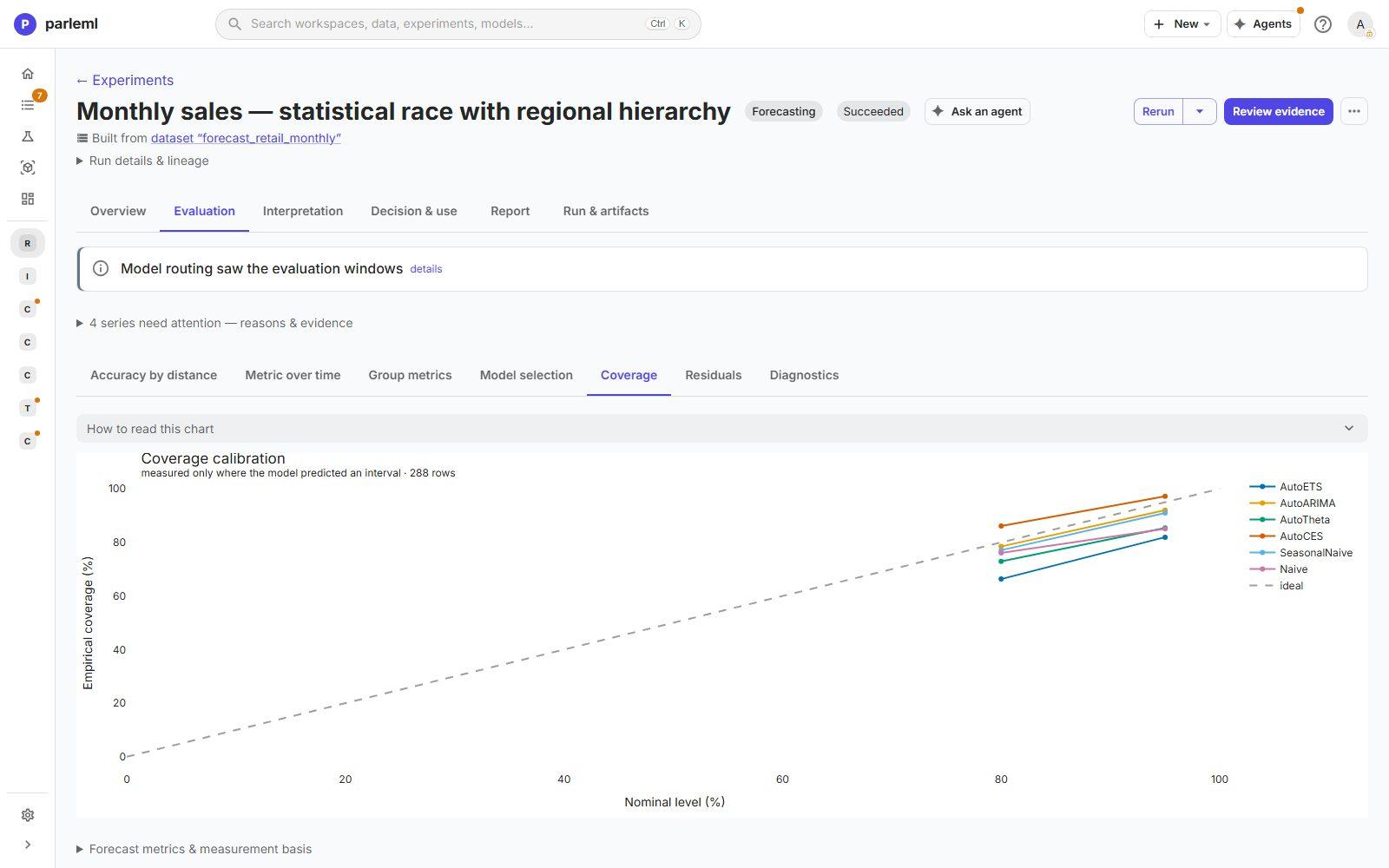
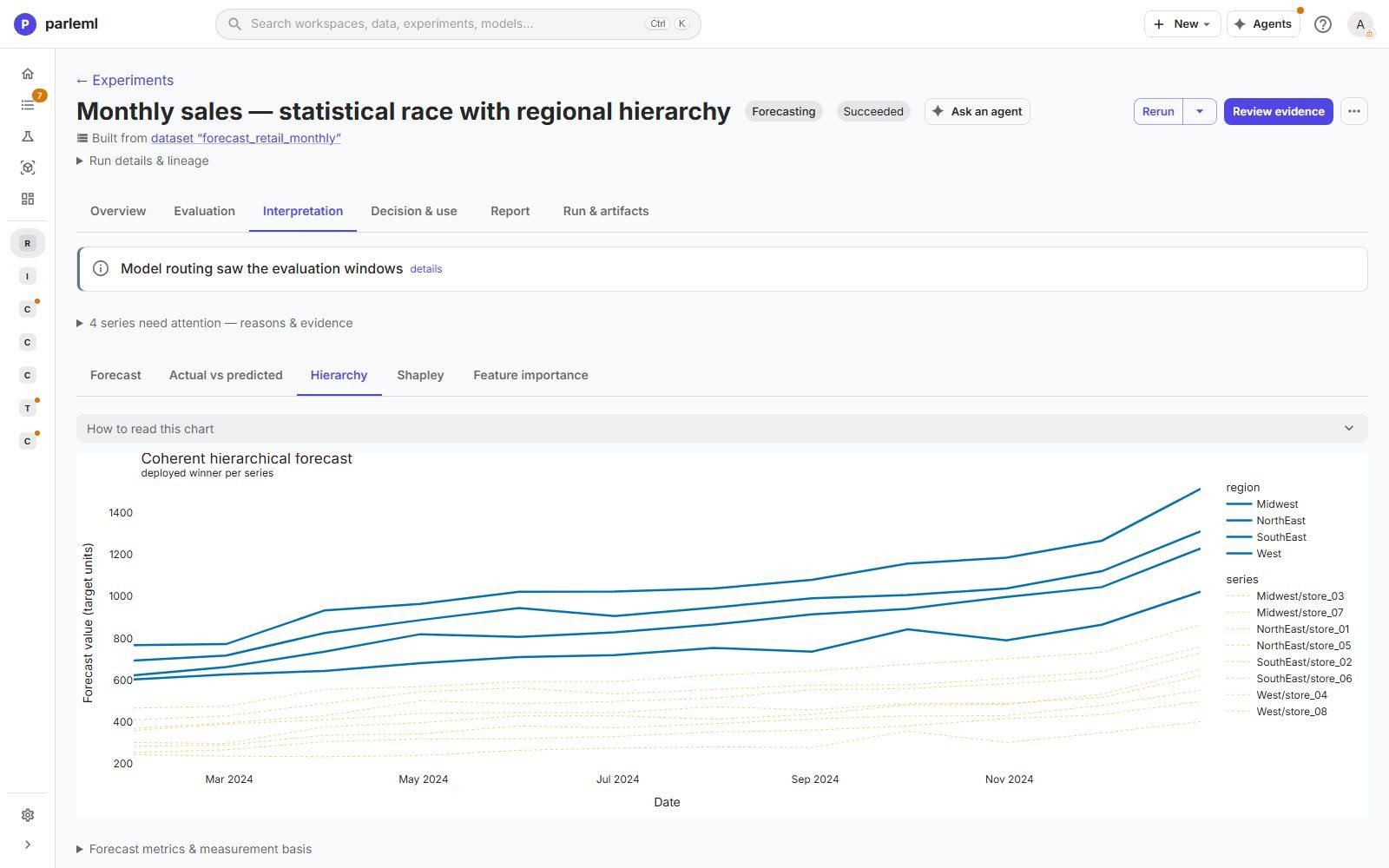
- Open Interpretation → Forecast & model → Hierarchy for the reconciled forecast of each region and store. Every regional line is the sum of its stores, which matters when the forecast feeds a regional plan.
Shapley and Feature importance are not available here: statistical models have no features to attribute, and the page says so. They see only each store's own history. They know nothing about promotions, so a promotion month looks like noise to them.
7. Build a second forecast that knows about promotions
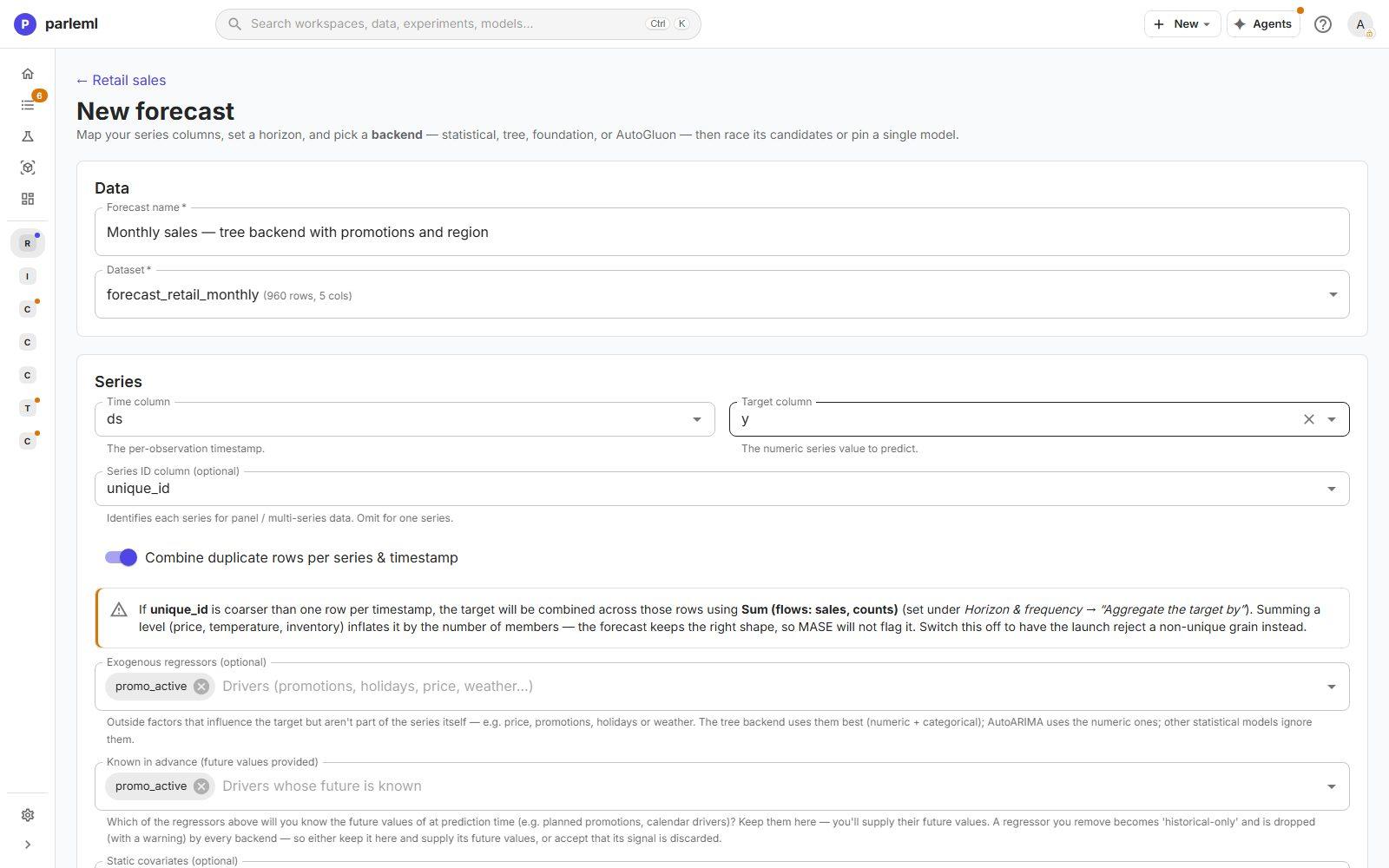
- Start another Forecast with the same series and horizon, named Monthly sales — tree backend with promotions and region.
- Add
promo_activeto Exogenous regressors. ParleML marks it Known in advance, because promotions are planned and you will supply their future values. Leave it ticked: unticked, the regressor is treated as history-only and its signal is dropped with a warning. - Add
regionto Static covariates: a store attribute that never changes. -
Choose the Tree (gradient-boosted) backend. It handles outside drivers natively, and it is the backend that can be fully explained.
-
Choose Launch forecast.
8. Read the better forecast
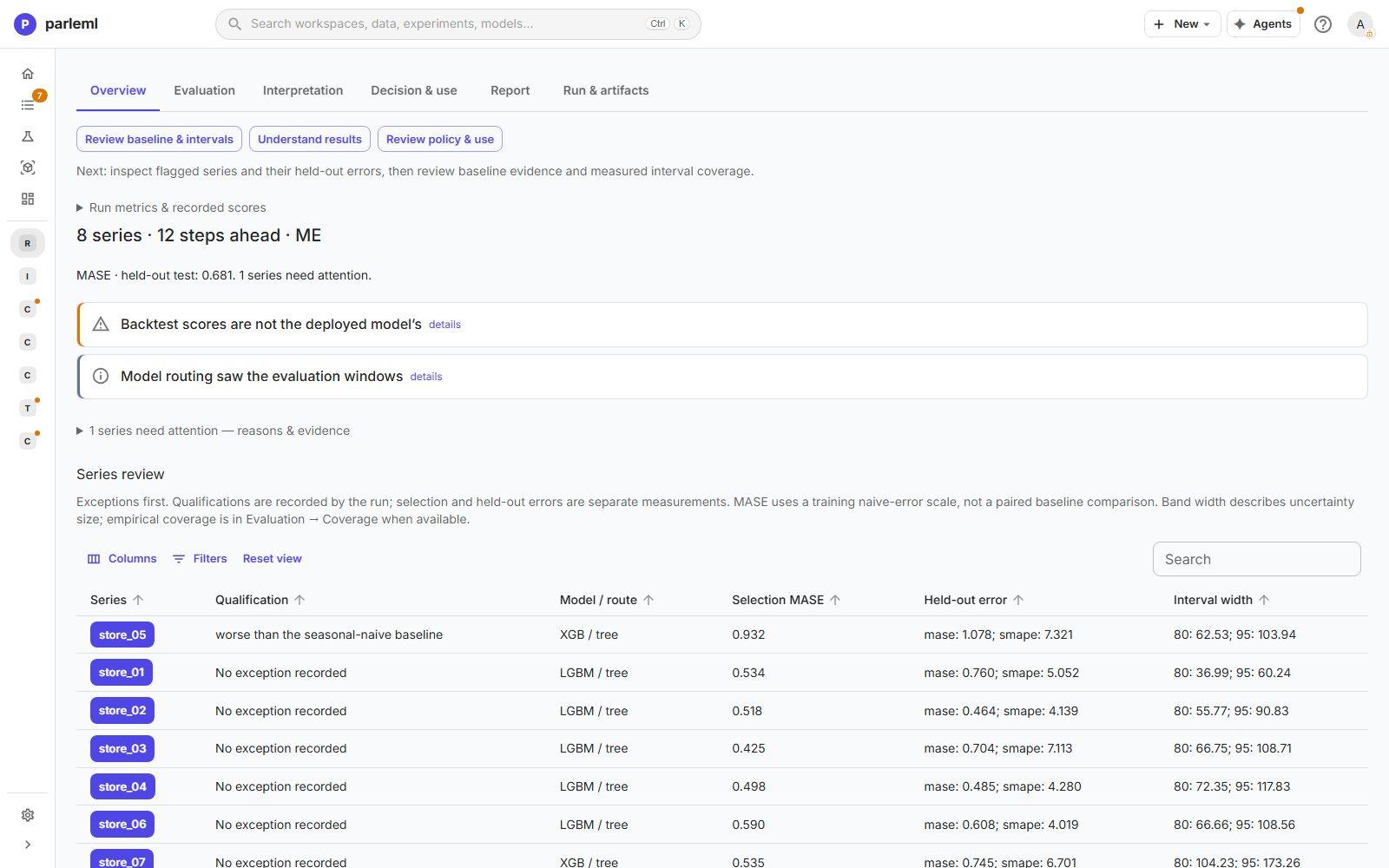
The held-out MASE is 0.681 against 0.951: 28% less error than the statistical race,
and well below 1. Only one store needs attention, against four before. Six stores have a
LightGBM winner and two an XGBoost winner. Held-out MASE per store ranges from 0.46 to 0.76,
except store_05 at 1.08.
Two notes on the overview are worth reading:
- Backtest scores are not the deployed model's: the shipped model is refitted on all the history.
-
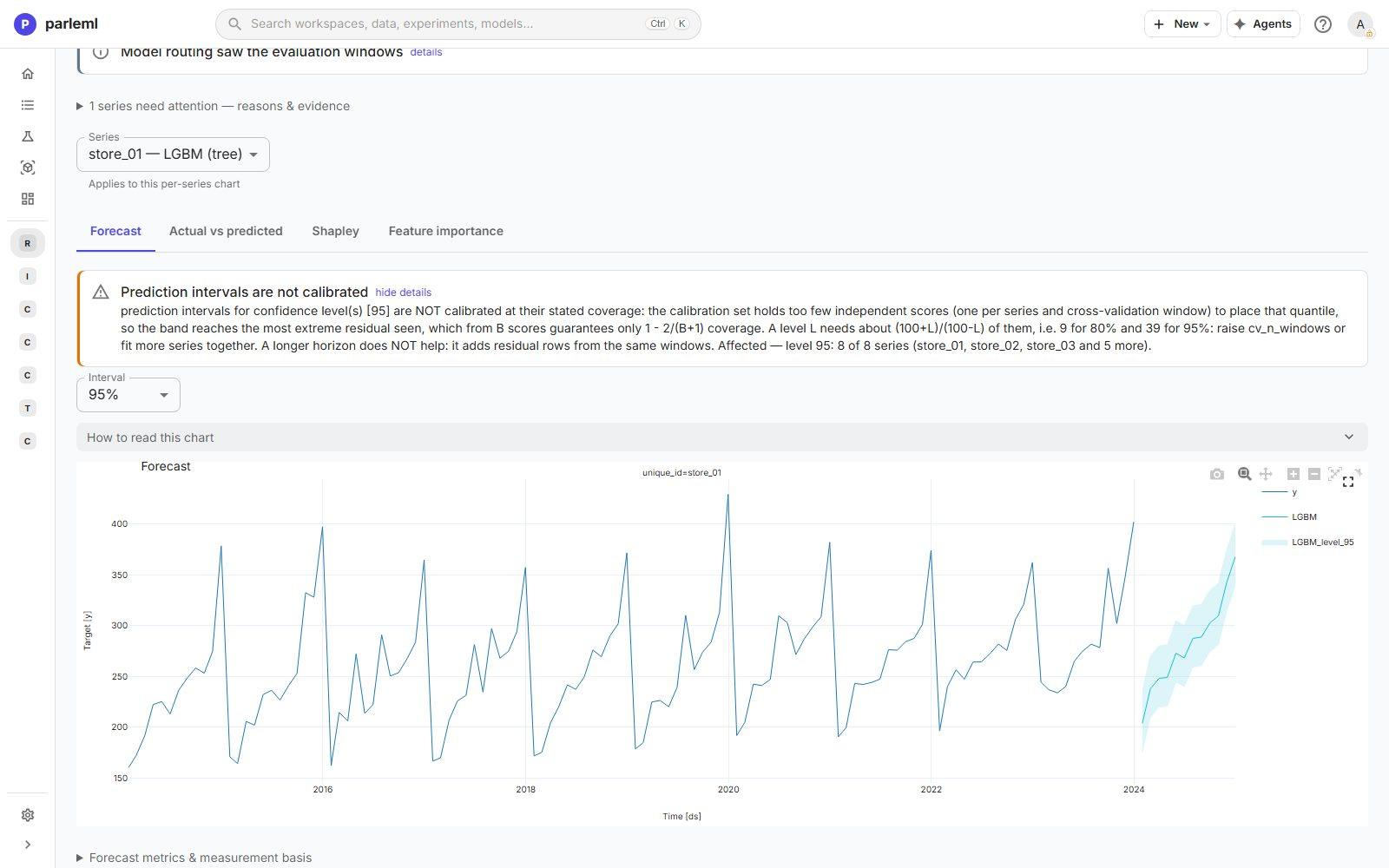
Prediction intervals are not calibrated at 95%: with few series and backtest windows there are too few independent scores to place that quantile. ParleML names the fix: more backtest windows or more series.
-
Open Interpretation → Forecast & model. Forecast shows each store's history, forecast and interval.
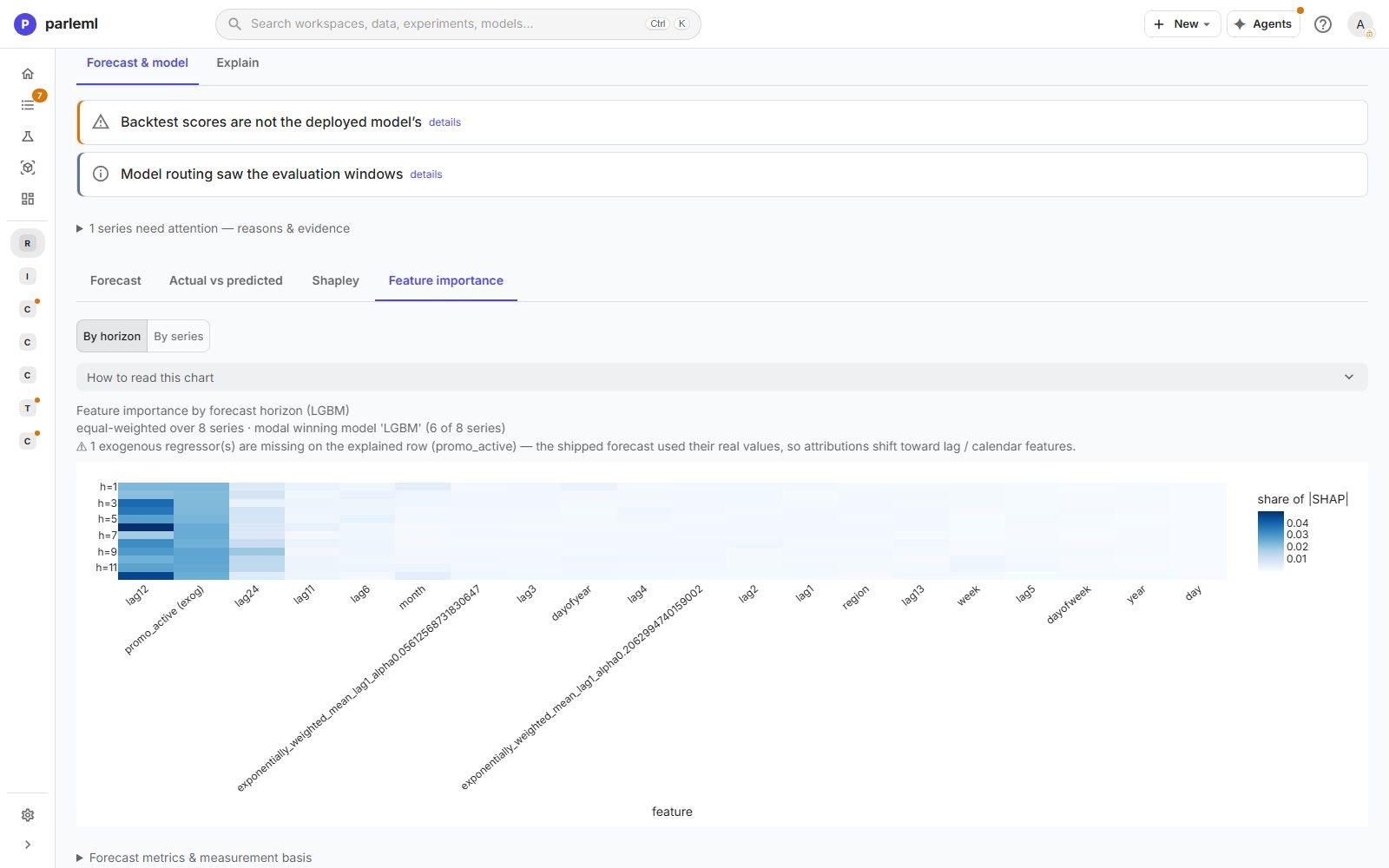
- Open Feature importance → By horizon: a heatmap of what the model relies on at each
step ahead. The 12-month lag dominates, and
promo_activeis second. The chart notes that the explained row has no future promotion value, so its attributions lean toward lags.
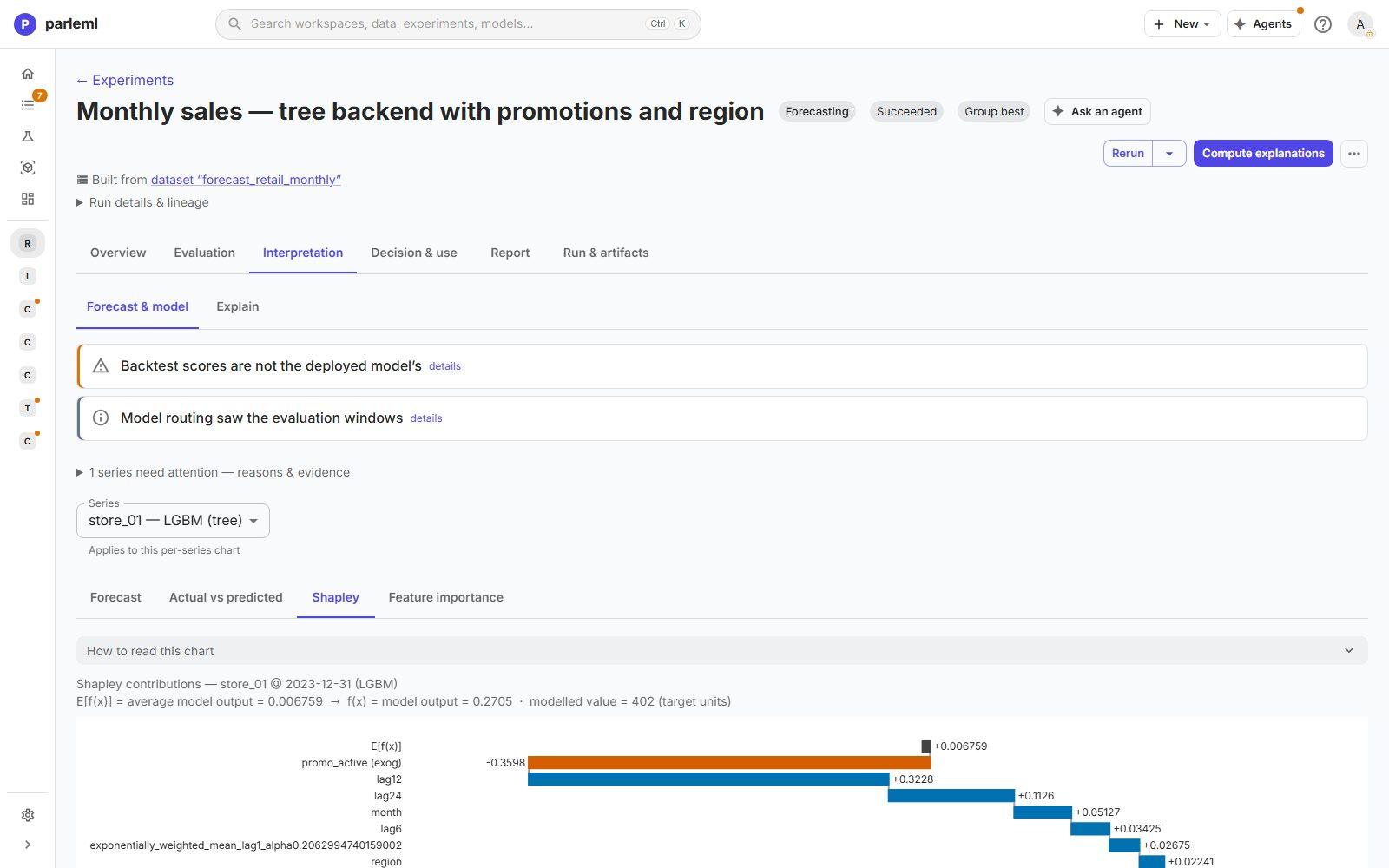
- Open Shapley. It splits one forecast into contributions, starting from the average output and adding each feature's push up or down. Values are in the model's working scale, converted back to sales units at the top (here 402).
9. Open the full explanation layer
The tree backend can be explained like any supervised model.
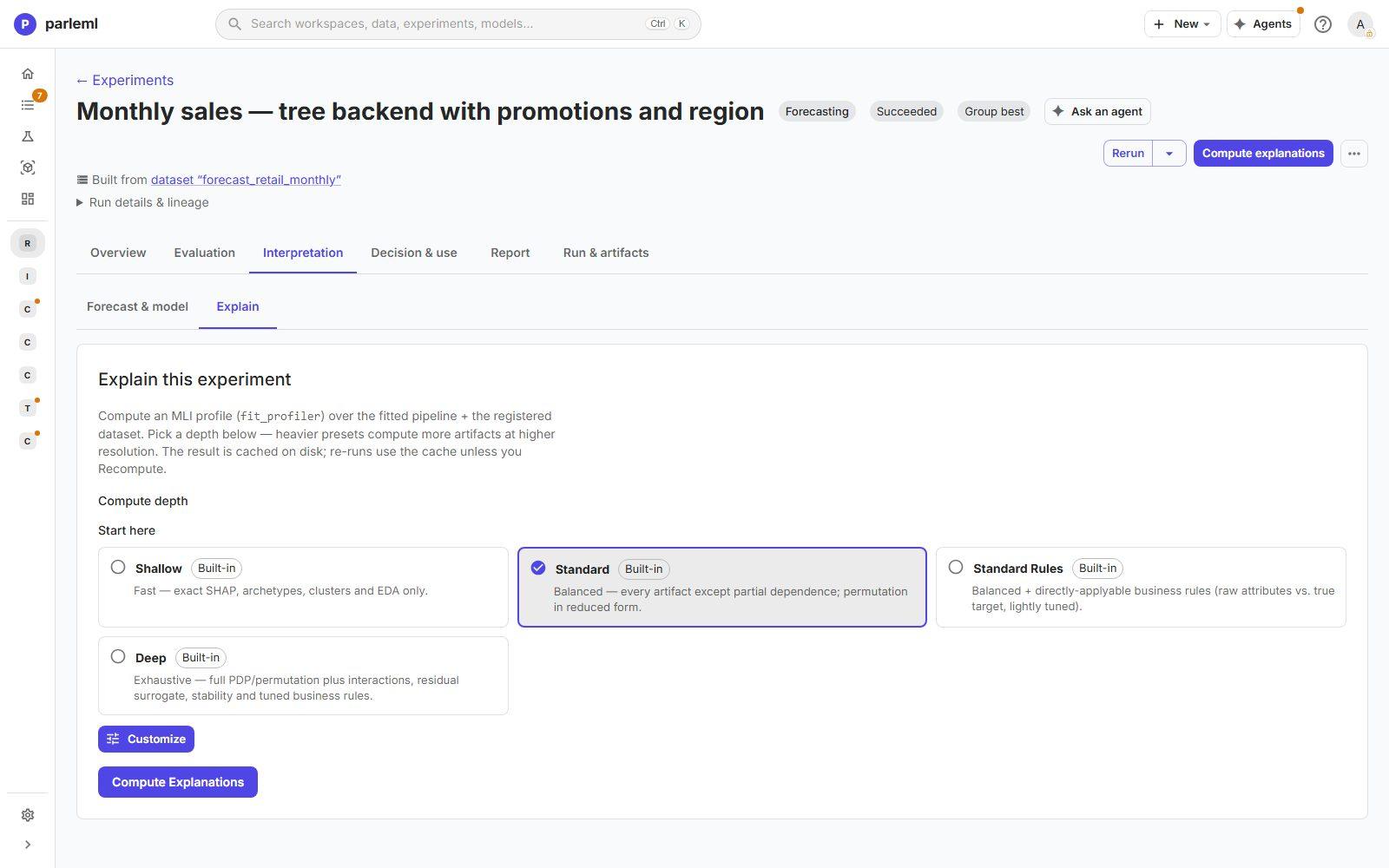
- Open Interpretation → Explain.
- Pick a compute depth (Shallow, Standard, Standard Rules or Deep). Take Standard.
- Choose Compute Explanations. It took about six minutes here, and the result is cached.
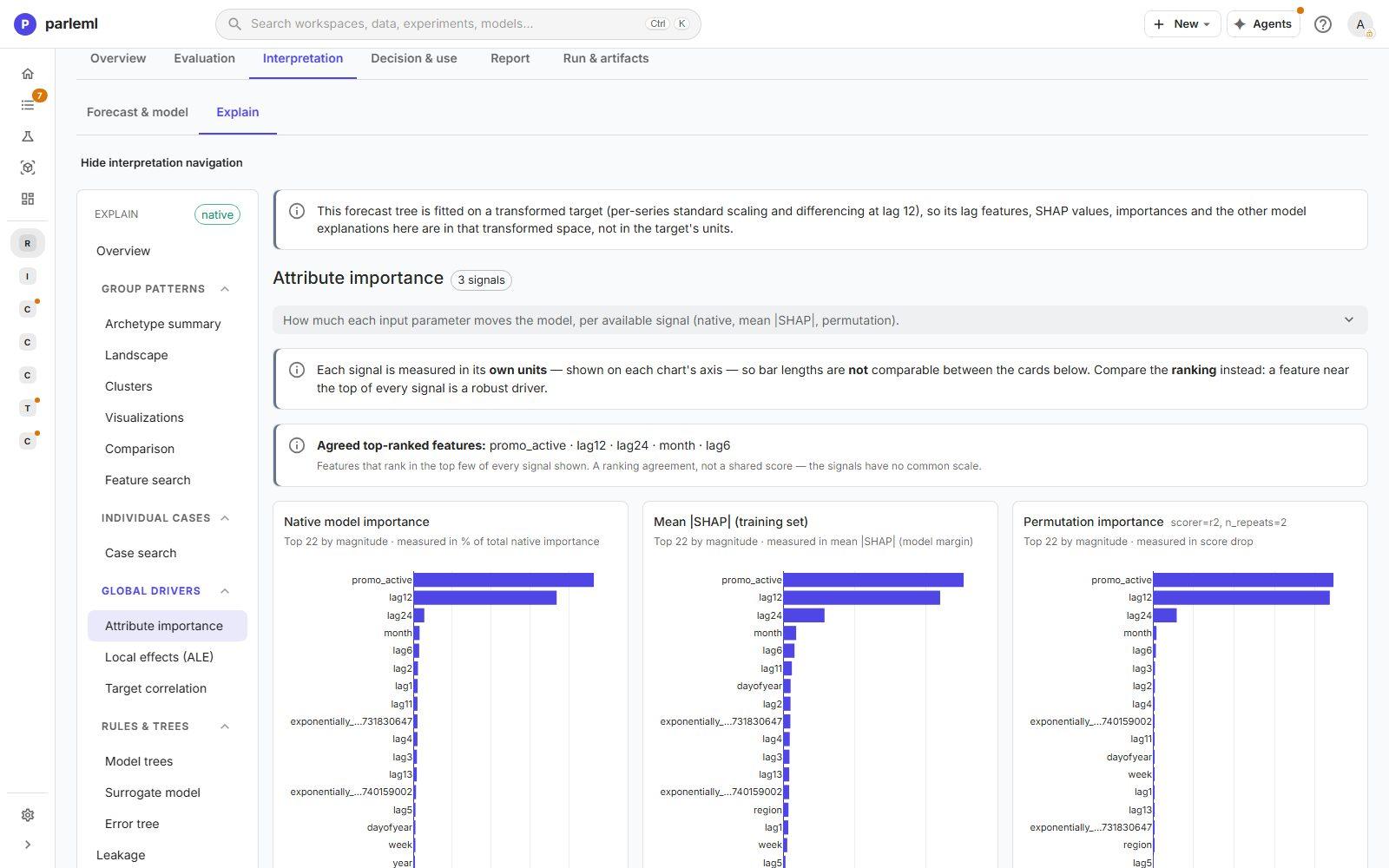
A banner on every view explains a limit: the forecast tree is fitted on a transformed target (each store standardised and differenced at lag 12). Lags, SHAP values and importances are in that space, not in sales units. The views still rank and group correctly.
- Open Attribute importance. It compares three signals: native importance, mean |SHAP|
and permutation. They agree on the top five:
promo_active, lag 12, lag 24, month, lag 6. A driver at the top of every signal is a robust driver.
-
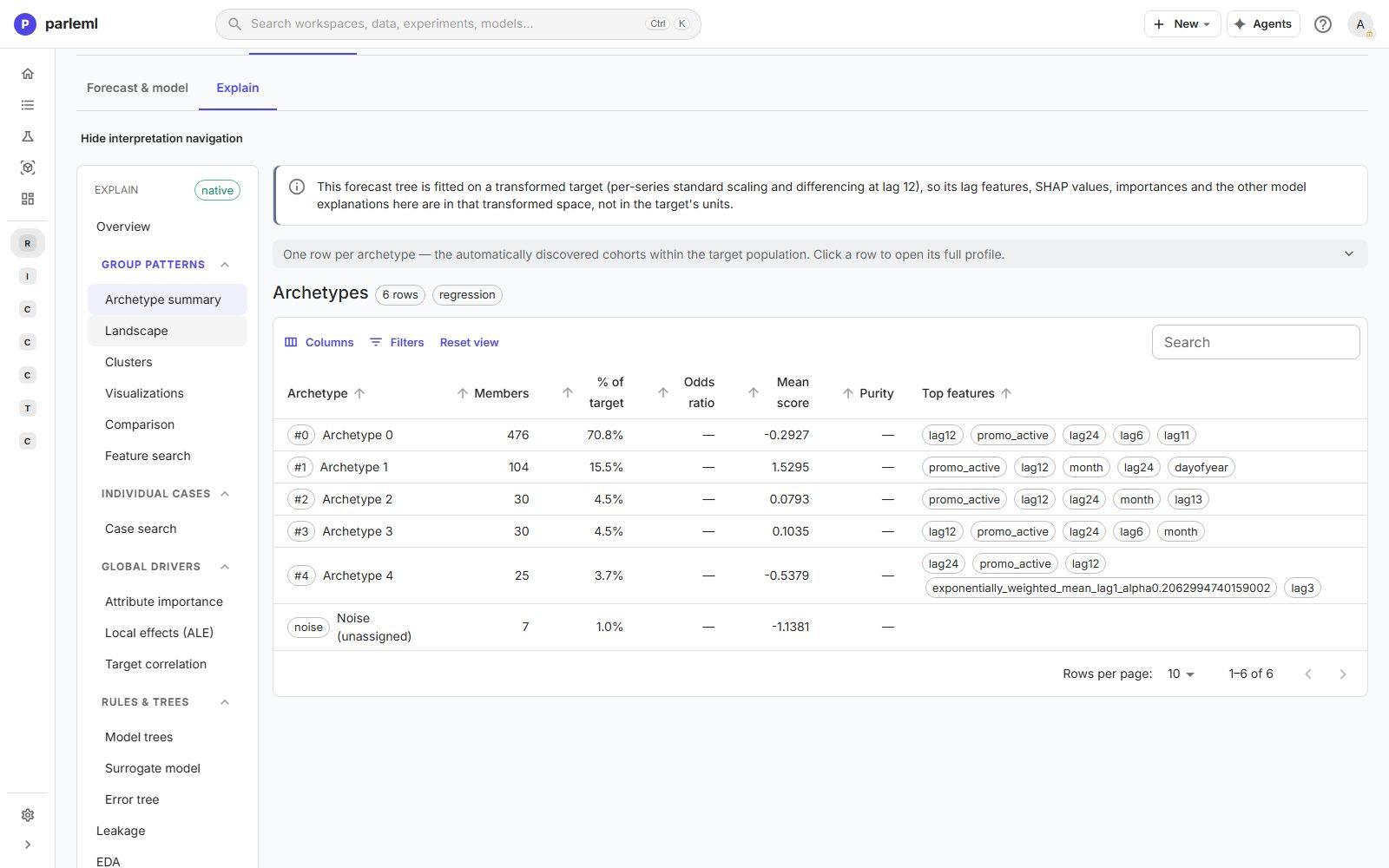
Open the archetypes: groups of months the model treats alike. There are five here:
- Archetype 0 holds most months (71%), led by the 12-month lag: ordinary months that look like last year.
- Archetype 1 holds 104 months (16%) with by far the highest mean score (1.53 in the
working scale), and
promo_activeis its top feature. These are the promotion months. A statistical model can't see this group, and it is where the extra accuracy comes from.
- Open Surrogate model and Error tree.
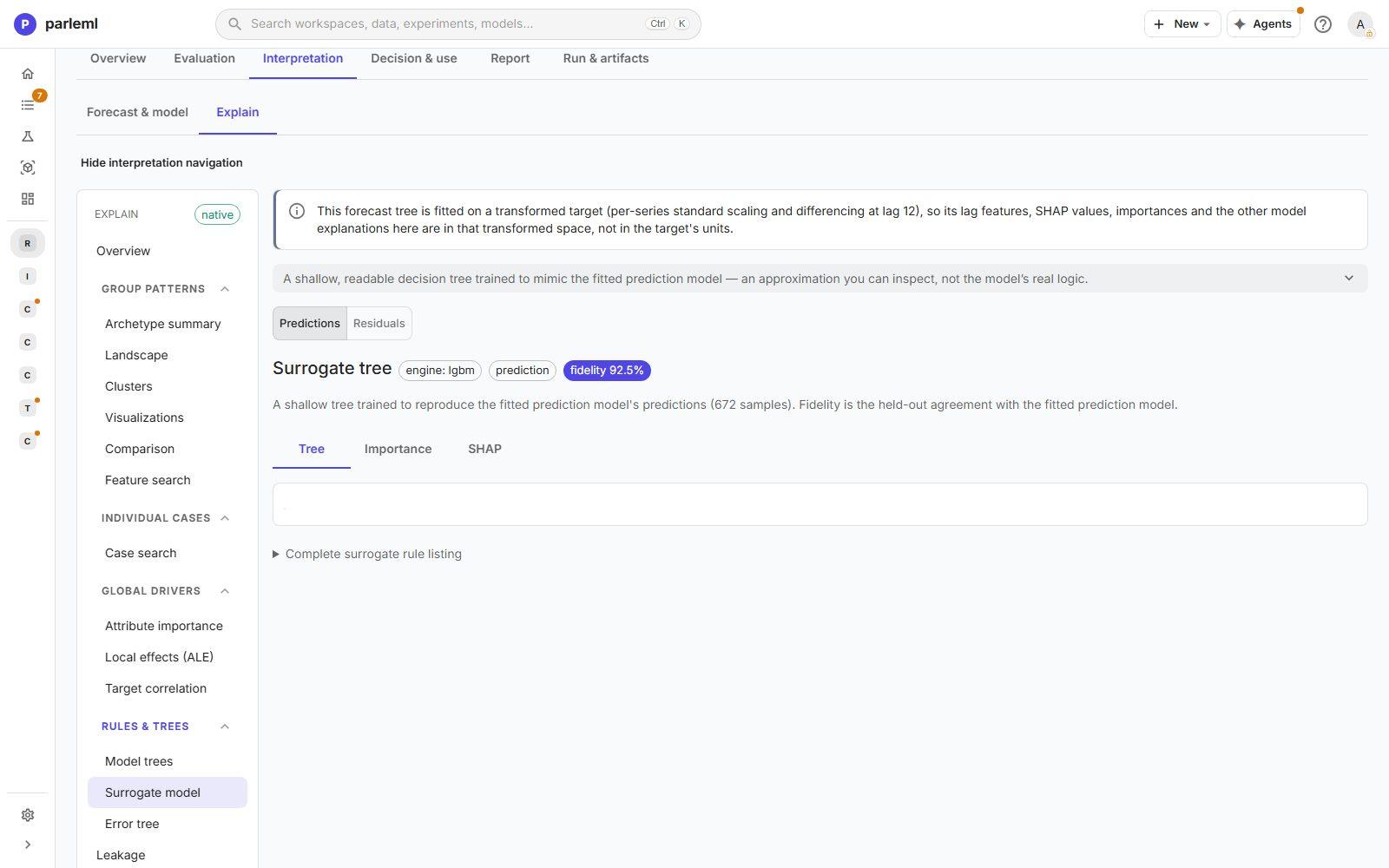
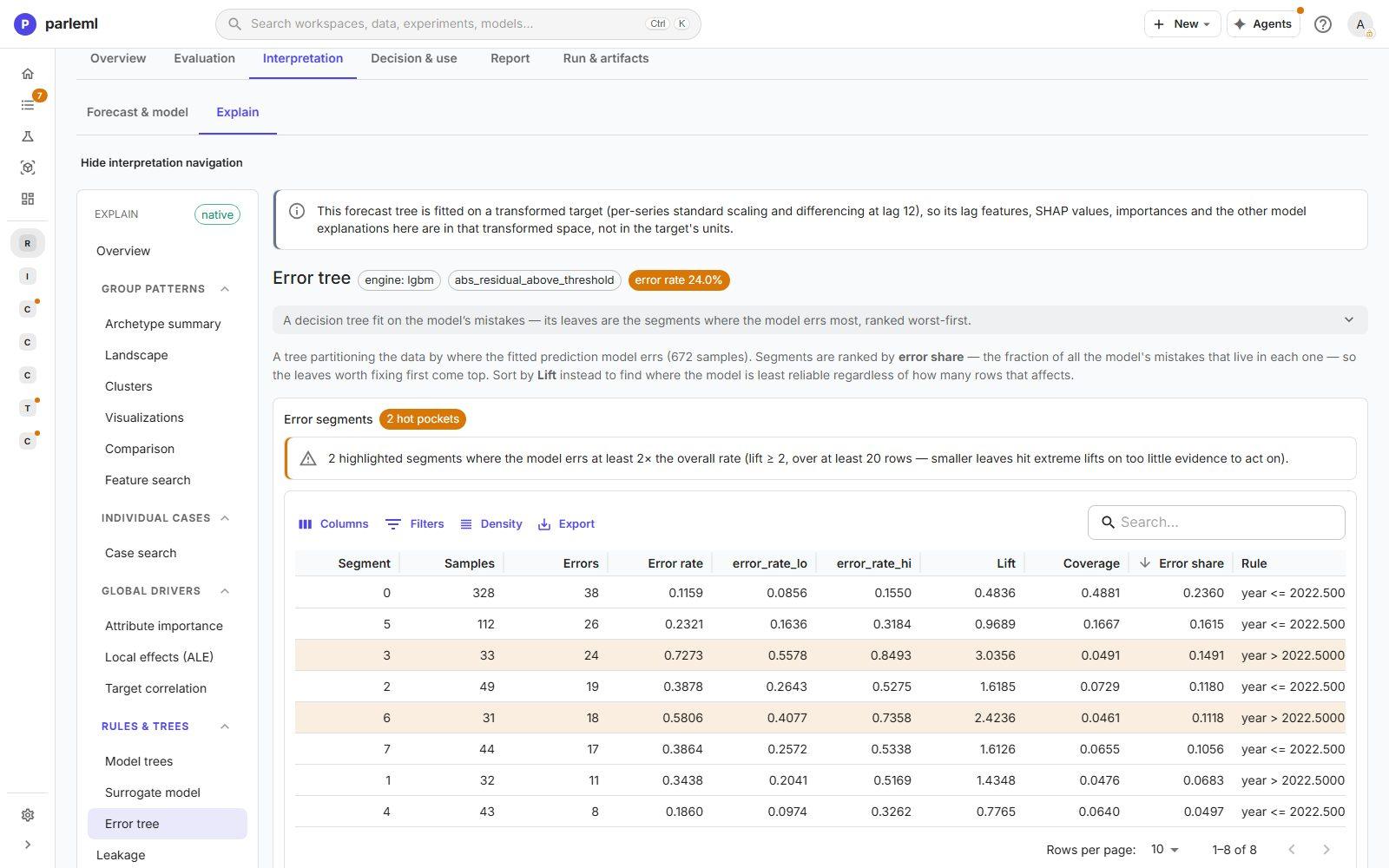
A surrogate tree reproduces the model with 92.5% fidelity, so its readable splits are a fair summary. The error tree finds where the model struggles. Its worst pocket is year after 2022 with a high 12-month lag, where the error rate is 3 times the overall rate. After a strong year the model expects a repeat, and the most recent year didn't deliver one. Watch that pattern when the forecast is used.
10. Compare the two forecasts
- In the workspace's Experiments list, tick both runs and choose Compare.
The grid lines up identity, forecast evidence, trust and top features:
| Statistical race | Tree with promotions | |
|---|---|---|
| Selection MASE (backtest) | 0.887 | 0.560 |
| Held-out MASE | 0.951 | 0.681 |
| Stores needing attention | 4 | 1 |
| Model lift (from Explain) | not available | 1.96 |
| Archetype coverage | not available | 99% |
| Top feature | not available | promo_active |
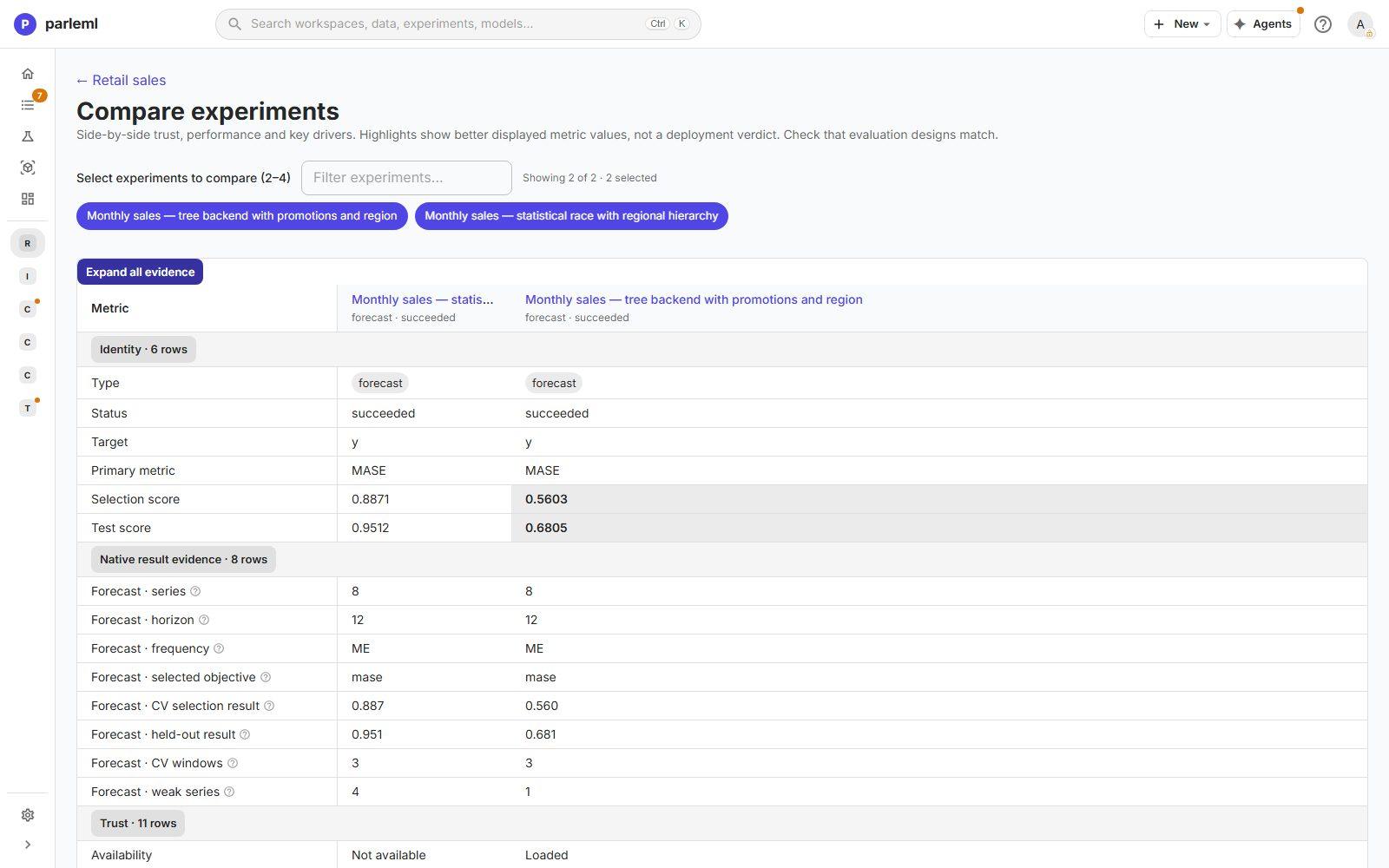
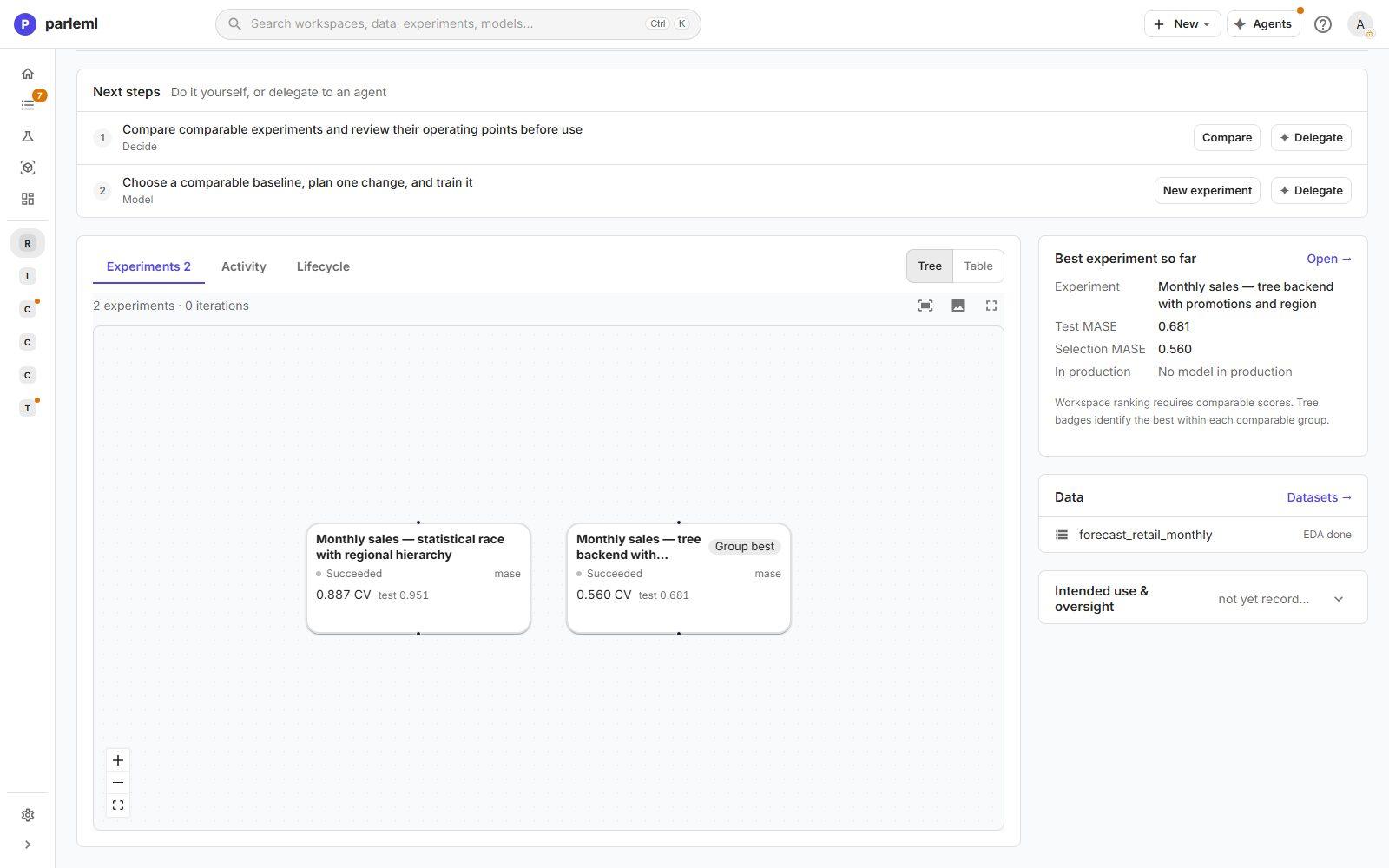
Both runs use the same series, horizon, cadence, objective and number of backtest windows, so the comparison is fair. The workspace Overview records both in its experiment tree, with a Group best badge on the winner.
11. Register the model
- On the tree forecast, open ⋯ → Register as model. Once explanations are computed, the primary button is Review evidence, so registration sits in the ⋯ menu.
- Give it a name, a risk level, an owner and a note.
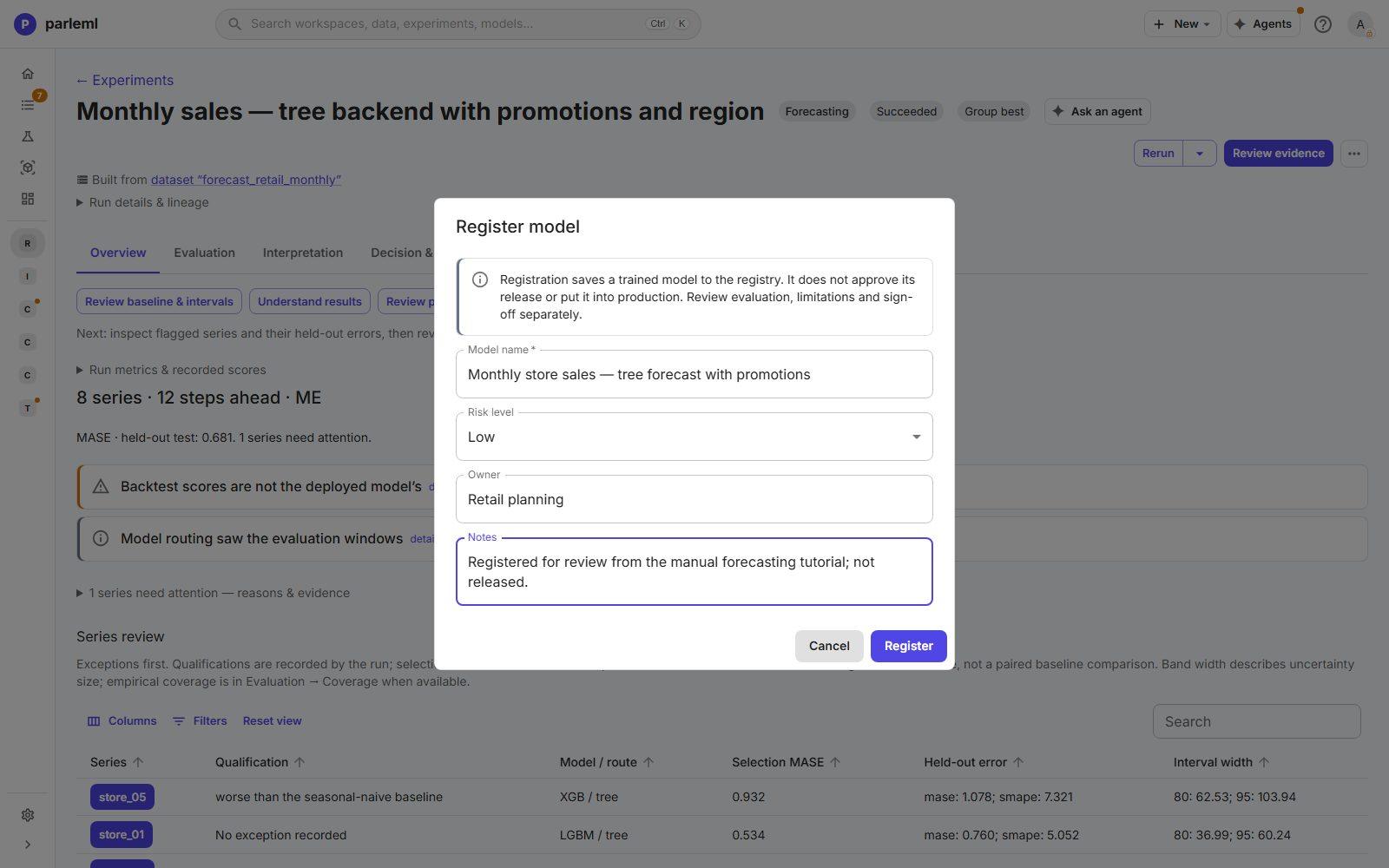
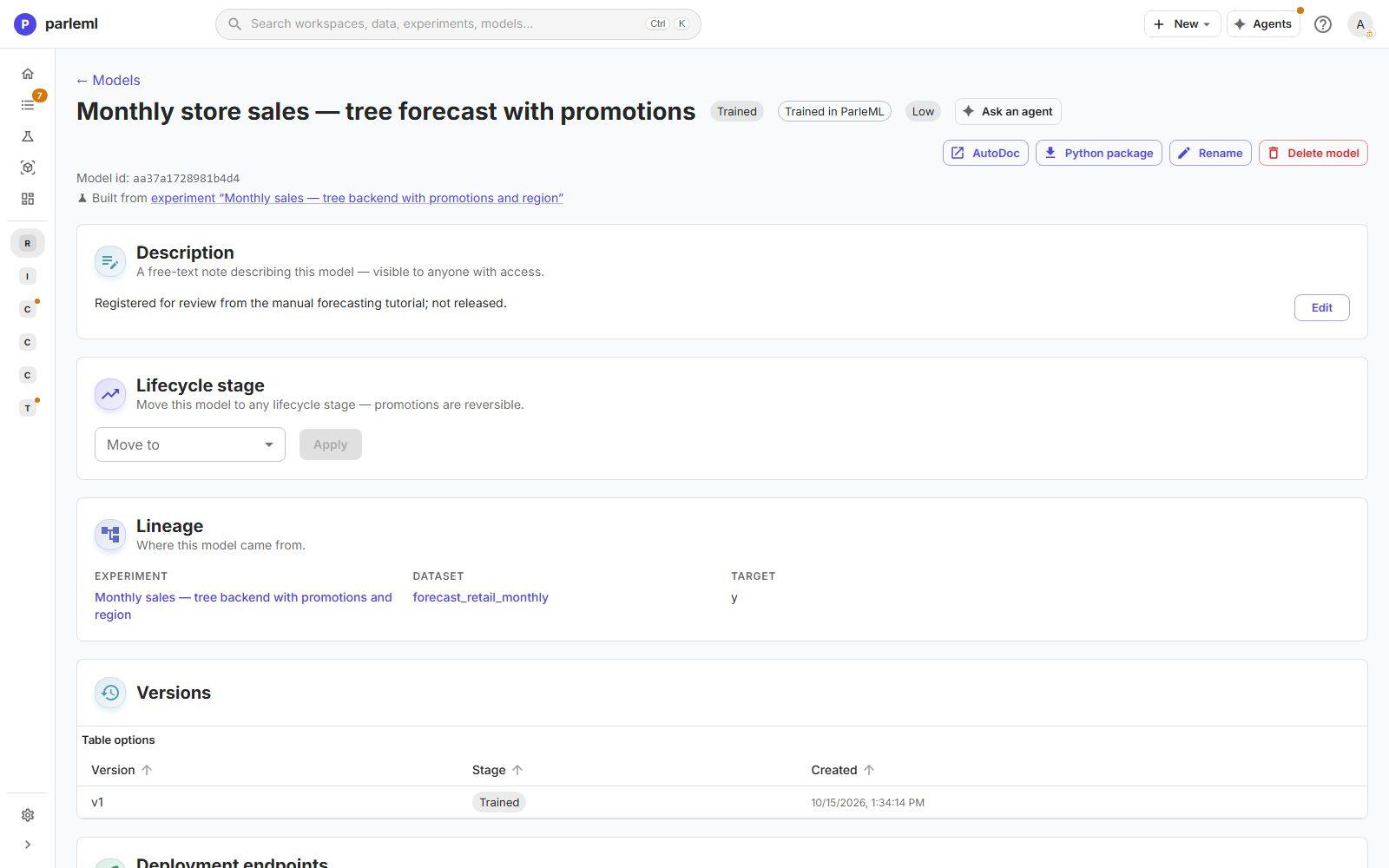
The model page opens at stage Trained, with its lineage back to this experiment and dataset, a description, versions and deployment endpoints. Registering is not a release: review it, and when a person approves its use, move it through the lifecycle stages.
What you did
Without an agent, you:
- profiled the data and set its roles;
- confirmed with a zero-shot check that a forecast was worthwhile;
- ran a fair race of statistical models with a reconciled regional hierarchy;
- added an outside driver and a different engine, which cut the error by 28%;
- used the explanation layer to show why: a distinct group of promotion months, and a weak spot in the most recent year;
- registered the better model for review.
To go further:
- Raise the number of backtest windows, as both runs suggest, for calibrated prediction intervals and a steadier estimate of their coverage.
- Try the Foundation (Chronos) or AutoGluon backends on the same setup and compare all four in one grid.
- Ask an agent to continue: choose Ask an agent on the tree forecast with a brief such as "investigate why store_05 is worse than seasonal-naive".
Every forecasting option is in Experiments → Forecast and Results for other kinds → Forecast.
Next
- Take a forecast from review to production: this model's challenge, release decision and stages to Production.
- Next best product for telecom customers: another by-hand tutorial, on ranking and recommendation.