Add your own skill pack
Time: about 30 minutes · You need: administrator access, and the procedure you want agents to follow, such as the validation checklist your model risk team requires. You'll end with: agents following that procedure in the sessions ParleML runs.
A skill is one procedure an agent follows. A skill pack is a set of skills, with their templates and rules. A pack does nothing until a profile selects it, so you can build and check it without affecting any session.
To change a shipped skill instead
To adjust one step of the shipped ML lifecycle, such as what Challenge the candidate must check, open that skill under Settings → Skill packs → Shipped with ParleML and edit it in place. Your change keeps the skill's identity and the profiles that use it, and the shipped original is kept. A pack of your own is for new procedures.
1. Create the pack, or import one
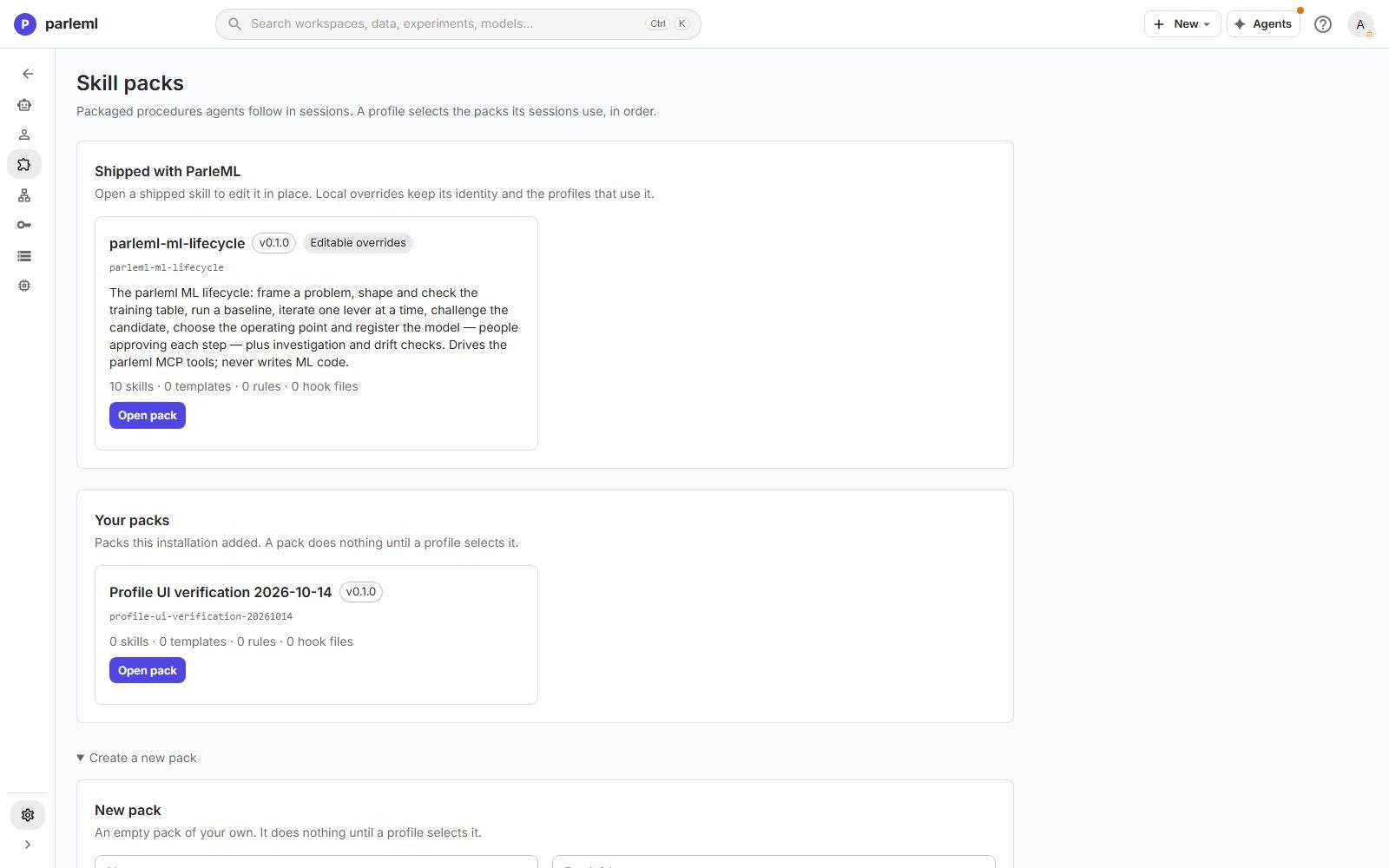
Open Settings → Skill packs. Then either:
- Create a new pack. Give a Name, a Pack id in lower-case words joined by hyphens (it never changes once created), a Description and a Version, then choose Create pack.
- Import a pack. Choose Choose ZIP or Choose folder, give the Target pack id, and choose Preview import. The server unpacks it without running anything and lists what it would store and what is risky: scripts, executable hooks, rules, and skills agents could start on their own. Nothing is written until you choose Import this preview.
A pack exported from another installation with Export with APM imports this way.
2. Add a skill
On the pack's page, under New skill:
- Give a Title. It proposes the Skill id.
- Write the Description. Agents match a request against it, so say when the skill applies, not only what it does.
- Set the attributes: Lifecycle stage, Model tier, Max turns, and the Access
scope of the token the skill gets. Give the narrowest scope that works:
analystfor a review that only reads. - Optional: open Draft with the assistant to propose the whole skill text from the description. Choose Use this draft to take it, then edit it.
- Choose Apply to SKILL.md draft. The server builds and checks the skill and lists any findings.
- Choose Create skill.
Write the instructions around ParleML's tools and the numbers they return, as the shipped skills do. A skill that tells the agent to compute metrics itself produces numbers no one can trace.
3. Validate the pack
On the pack's page, choose Validate pack. It checks the manifests, templates, rules, hooks and every skill. Fix every error before a profile uses the pack.
4. Switch it on for a profile
- Open Settings → Profiles and the profile your workspaces use. To try the pack on a few workspaces first, choose Duplicate, then Create profile, and give those workspaces the copy.
- Under Skill packs, select your pack and set its order among the others.
- If a skill in your pack can lead a session, tick it under Startable sessions, so people can choose it when they start one.
- Choose Preview to see the resolved profile, then Save.
- Choose Preflight saved profile. It confirms every agent is signed in and every connection answers.
New sessions in workspaces with that profile now see the pack.
5. Check it in a session
- Start a session that should use the skill.
- Open its Flow. The step shows the skill's title.
- Open Context to see the briefing the agent received.
If the agent never picks the skill, sharpen its description. That is what agents match against.
Next
- Configuring agents and Skill attributes: every field a skill can carry.
- Settings and agents: the pack page and the skill editor in depth.