Workspaces and sessions
In short
- Home shows what needs you, what is running and your workspaces.
- A workspace holds one business problem: its data, experiments, models, sessions and decisions. Write its goal and intended use first.
- A session is an agent working on a task. Every step, question and object it makes is kept.
- When an agent needs a person, it asks a decision and waits. Only people answer.
- Everything an agent does you can also do by hand, and the record is the same.
Home
Home is where work starts and where waiting work comes back to you.
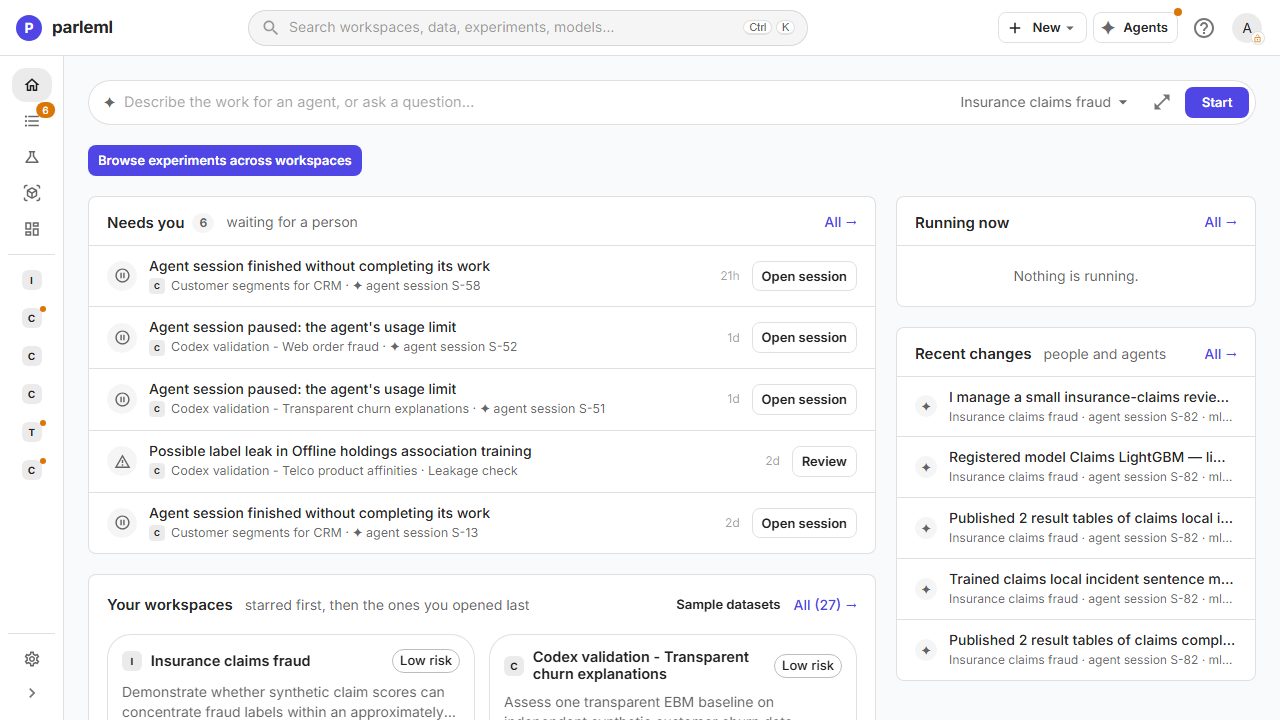
- The brief box at the top starts an agent session from a description of the work or a question.
- Needs you lists everything waiting for a person, each with one action:
- a decision to answer (Answer);
- a session that paused, stopped or finished without completing its work, for example because the agent reached its usage limit or is not signed in (Open session);
- an experiment or job that failed (Open log, Open);
- a dataset whose leakage scan found columns to check, such as a possible label leak (Review);
- a shipped skill you edited that ParleML has since updated (Review changes).
- Running now lists everything executing. Recent changes shows the last five things people and agents did.
- Your workspaces lists starred workspaces first, then the ones you opened last, each with its stage, best result and risk.
- Sample datasets opens the gallery of included examples. Each one creates a ready workspace.
The top bar is the same on every page:
- Search (Ctrl K) finds workspaces, data, experiments and models, and runs actions.
- New creates a workspace, dataset, experiment or knowledge base, or imports a model.
- Agents opens the agent panel.
- ? opens Get started, the Documentation, the API reference, Tutorials, Keyboard shortcuts, and Use ParleML from your own agent.
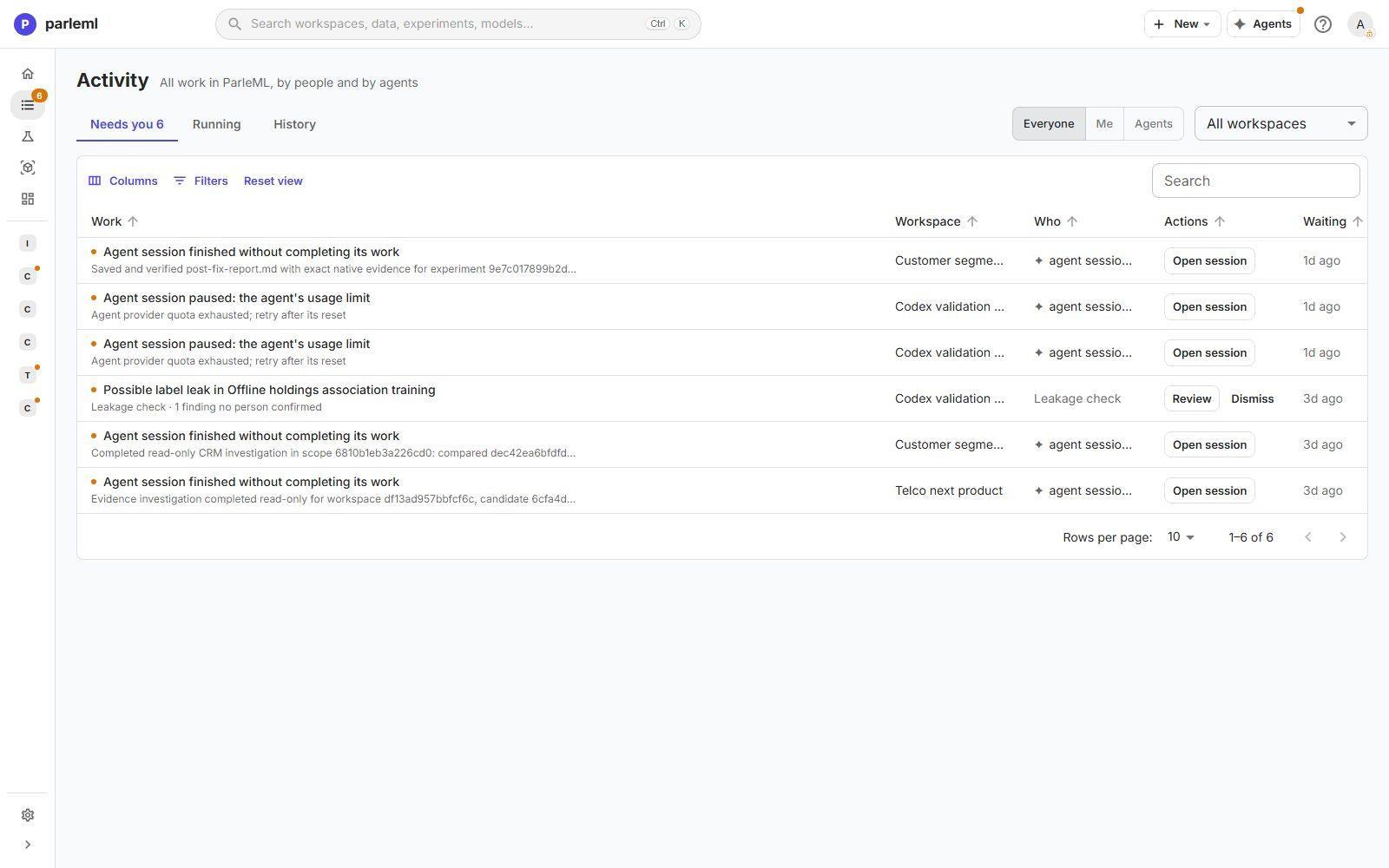
Activity in the sidebar lists all work by people and agents. It has Needs you, Running and History views. You can filter it by who did the work (Everyone, Me, Agents) and by workspace.
Workspaces
A workspace holds one business problem. Create one with New → Workspace.
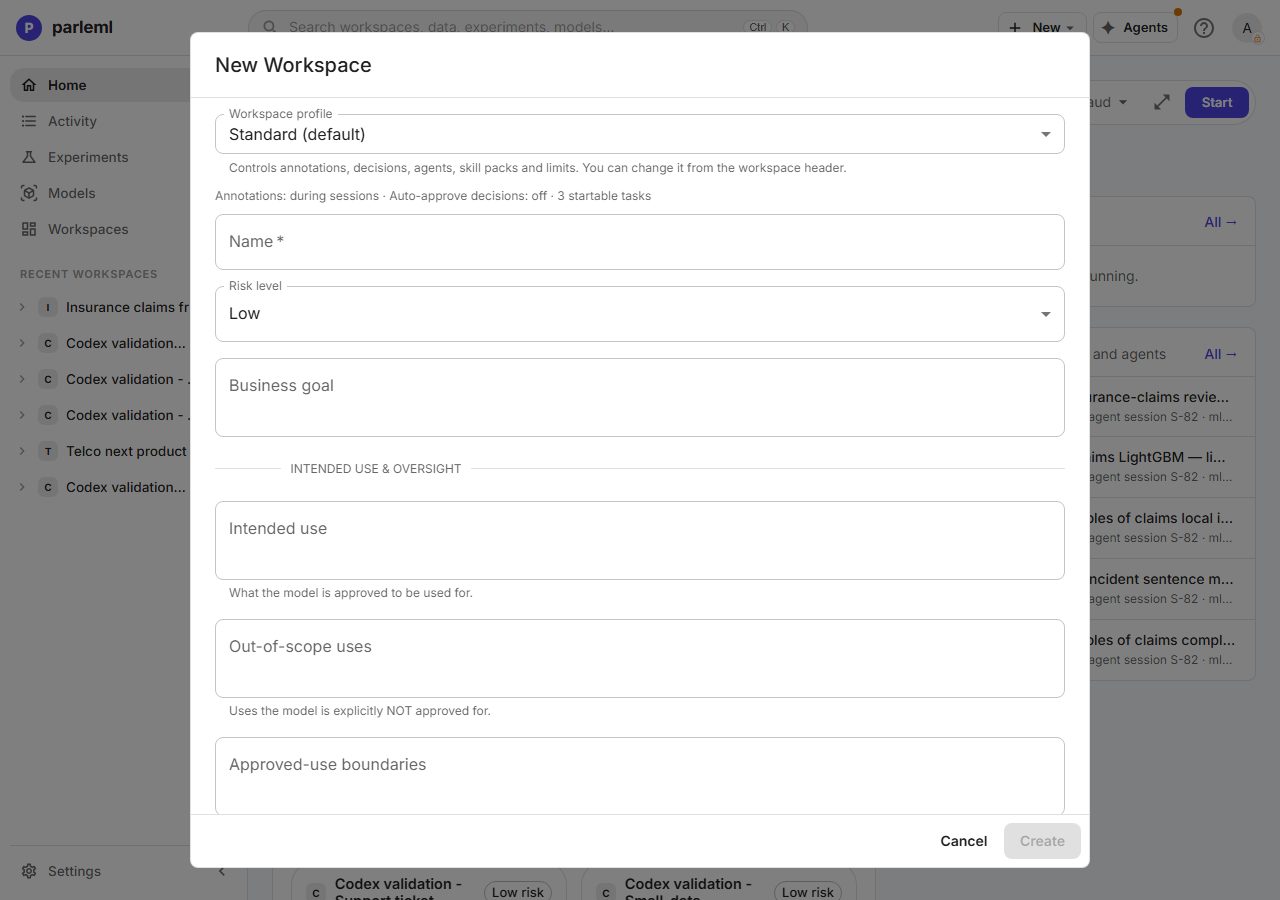
| Field | What it is for |
|---|---|
| Workspace profile | The rules the workspace's agents follow. Standard is the default. See Profiles. |
| Name | Required. |
| Risk level | Low, Medium, High or Regulatory. Shown everywhere the workspace appears. |
| Business goal | The outcome the work should support. Every agent receives it. |
| Intended use & oversight | What the model is for and not for, the approved-use boundaries, foreseeable misuse, the review cadence, and who may override it. These fields go into the model card. |
Write the goal and the intended use first. Results, and later a release, are judged against them.
The workspace overview
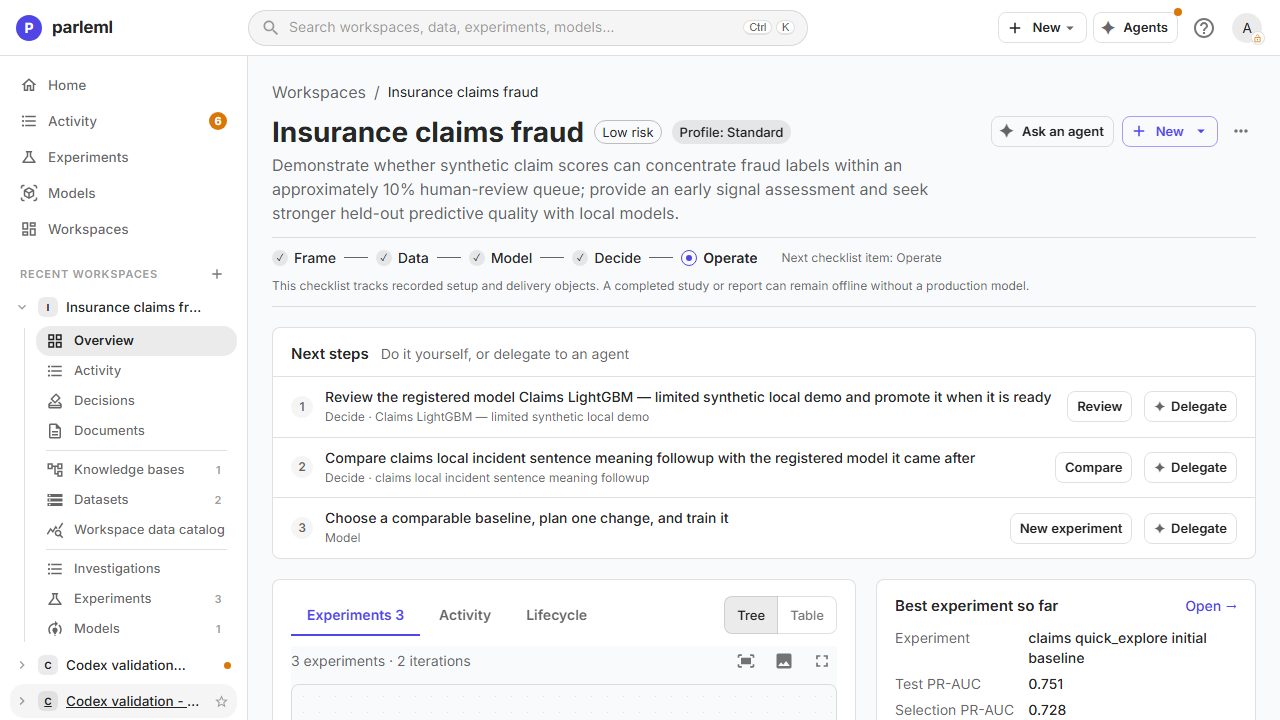
- The checklist (Frame → Data → Model → Decide → Operate) ticks each step once its record exists. A finished study or report can stop before a production model.
- Next steps proposes what to do next. Each step has a button to do it yourself and a Delegate button that hands it to an agent.
- The experiment tree shows what was derived from what and what changed (see Experiments). Beside it are the Best experiment so far and a written account of what the model found.
The sidebar lists a workspace's sections in three groups:
- Overview, Activity, Decisions, Documents;
- Knowledge bases, Datasets, Workspace data catalog;
- Investigations (its agent sessions), Experiments, Models.
The profile chip in the header opens the workspace's profile summary.
Sessions
A session is an agent working on a task: framing a problem, preparing data, training and iterating, challenging a candidate, releasing a model, or investigating a question. Its steps, questions, objects and outcome are all kept. Sessions are numbered in the order they start (S-82), and a number is never reused.
Start a session
Use Ask an agent on a workspace, dataset, experiment or model, the Agents panel, or Delegate on a next step. Then choose:
- the workspace. It supplies the goal, intended use, datasets, experiments, the best result and earlier decisions. New workspace from this brief creates one for you.
- the task. Let ParleML suggest picks it from your brief; you can also name one, such as delivery, investigation or operation.
- the agent, among those signed in that the profile allows. Your own agent turns the brief into text to copy into an agent you run yourself.
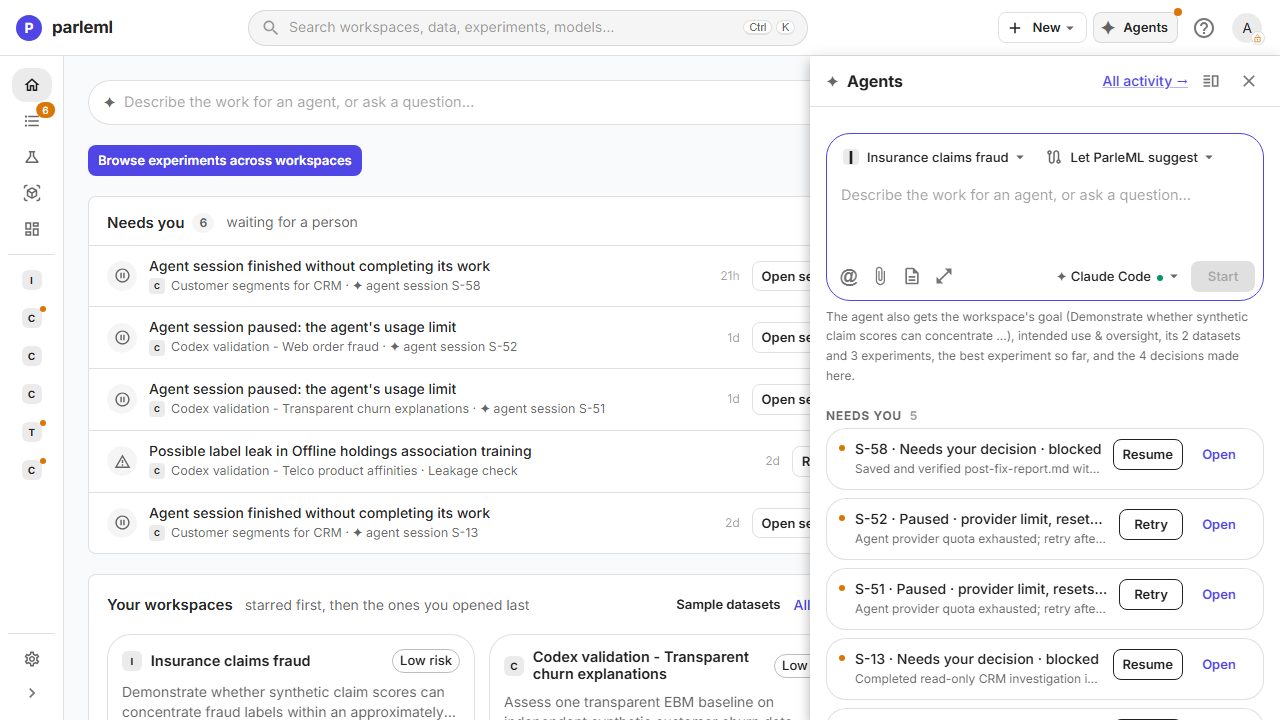
In the brief, describe the outcome, the business constraints, how you will judge success and what needs your approval. @ Add attaches workspace objects, and Attach a file adds a file. Ctrl Enter starts the session.
The session page
The page has two panes: the work on the left and a panel on the right. You can drag the divider. On a narrow screen the panel becomes a drawer, and its button shows how many decisions are waiting.
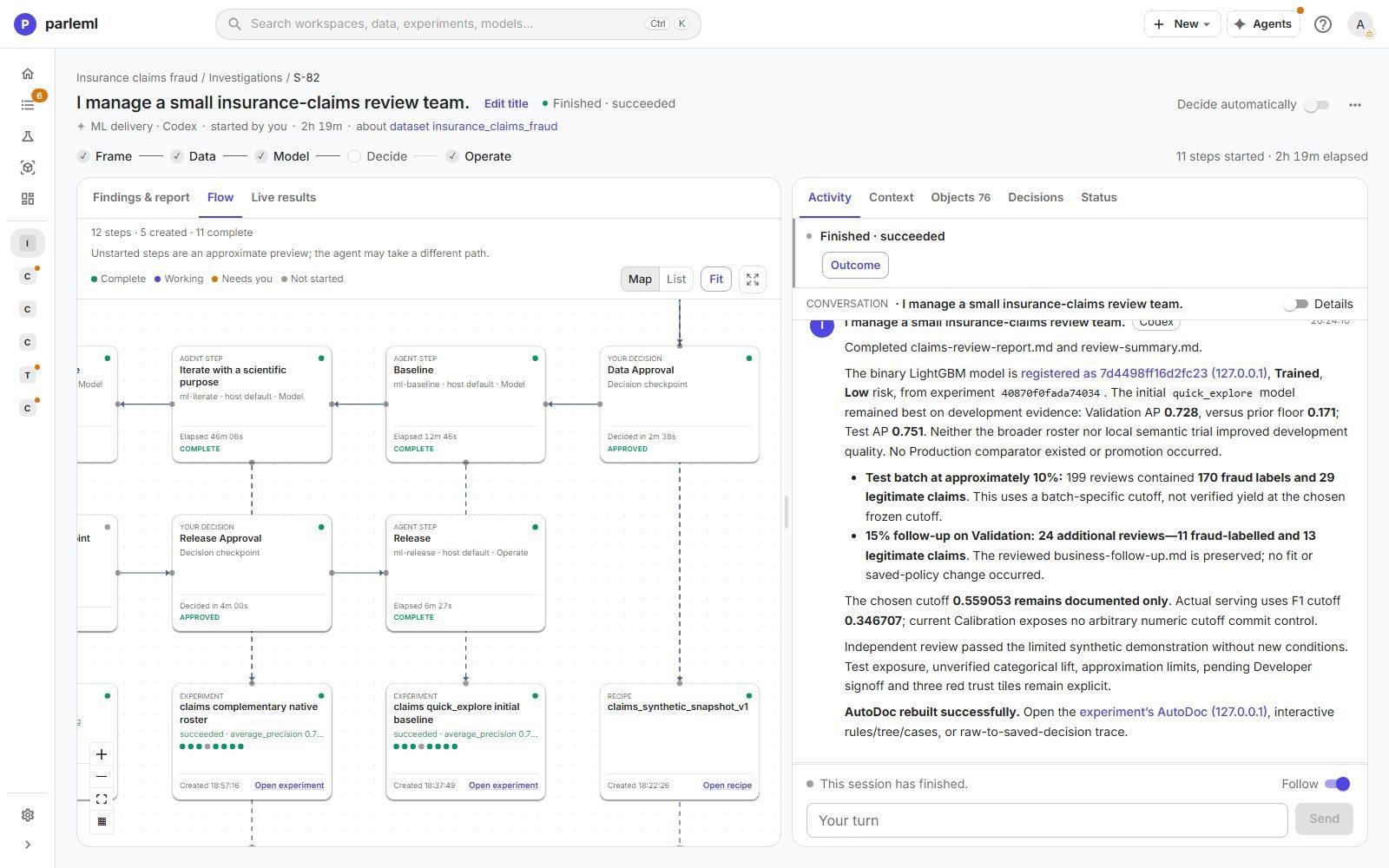
The header shows the title, the status, the task and agent, who started it, the time taken, the object it is about, its own Frame-to-Operate strip, and the Decide automatically switch.
Details: how the stage strip fills
A stage is reached by the steps that ran in it. It is also reached by work the leading agent did itself: a decision it asked, data it prepared, an experiment it launched or a release it recorded. Each decision belongs to the stage of the step before it, so a release approval counts as Decide work.
A stage nothing reached stays empty. The stage in progress is marked, and so is a stage with a decision waiting on you.
Left pane, in three tabs:
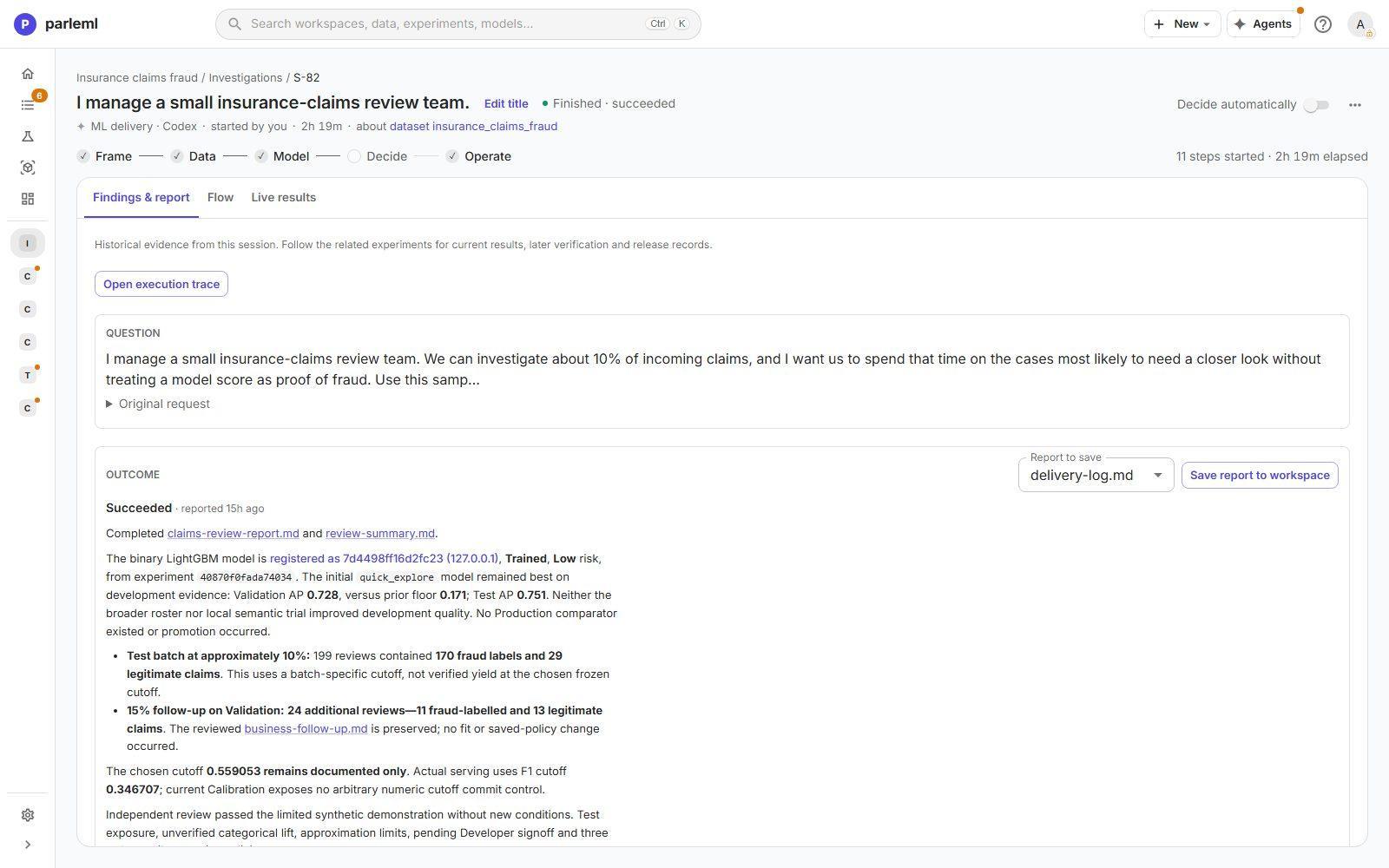
- Findings & report: the question, the reported outcome with its links, the findings of each step, the linked evidence, and every file the session produced. Open execution trace shows the raw activity.
-
Flow: a map of the steps. Each card shows its kind and status:
- agent steps, with the skill that ran and the time taken;
- your decisions, approved or waiting;
- experiments, with their score and stage dots;
- recipes and other objects, each with a link to open it.
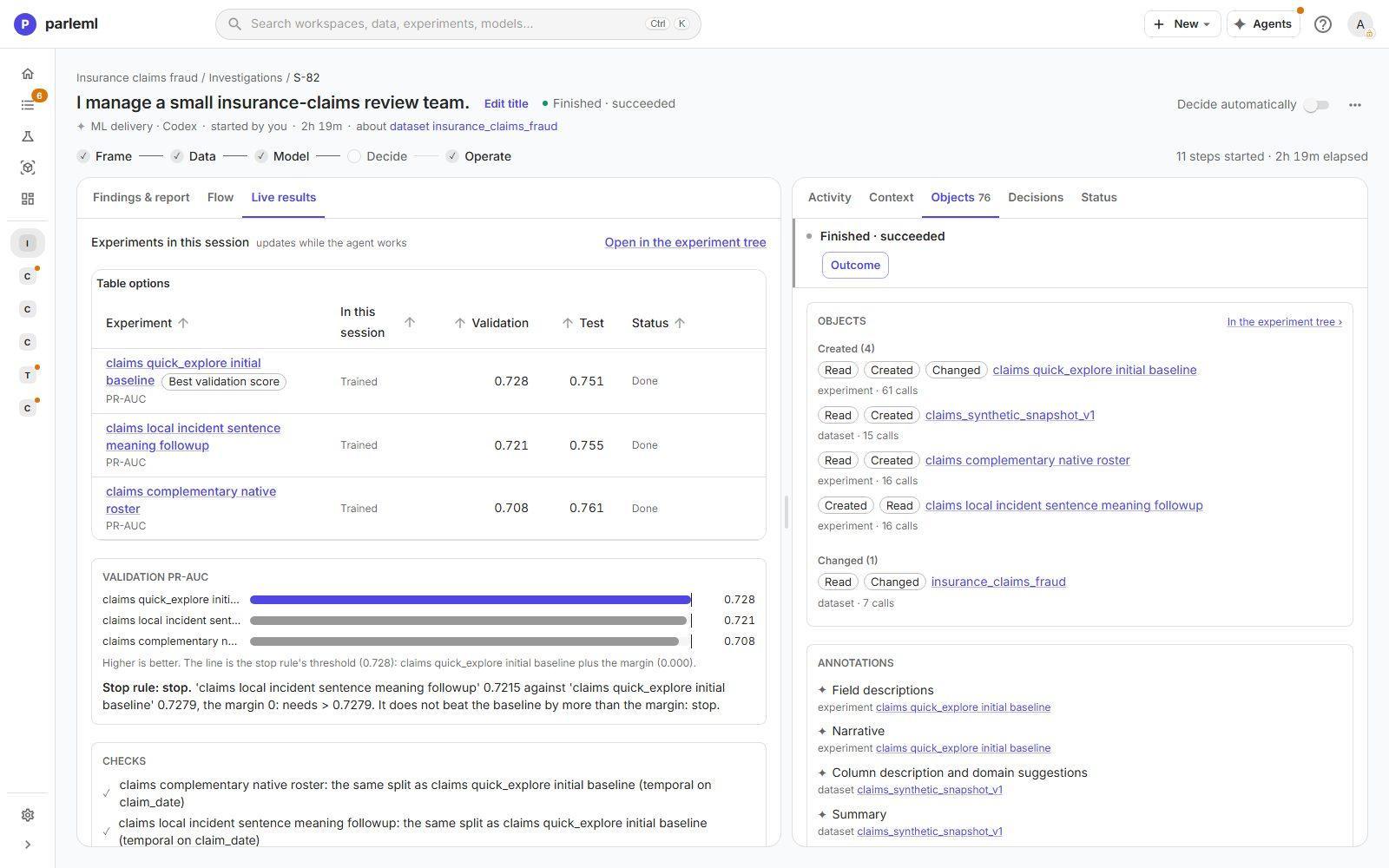
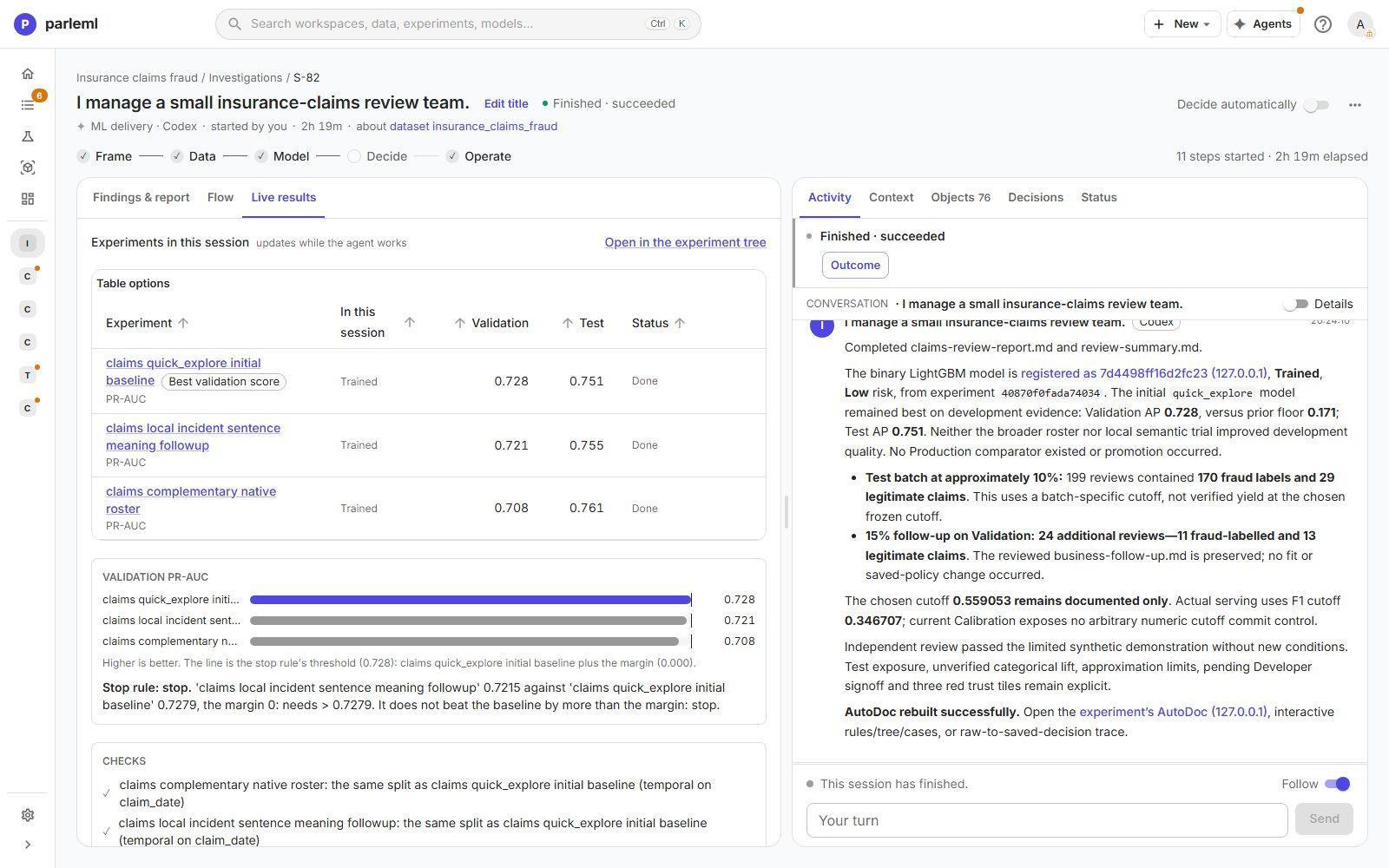
A List view shows the same steps as a list. - Live results: the experiments the session trained, with validation and test scores. Validation bars are drawn against the stop rule: the score a challenger had to beat. Checks flag a split that differs from the parent's, failed stages, or unreviewed leakage on the data.
Details: steps that never ran
Steps not yet started are a preview, and the agent may take a different path. Once the session has ended, a step that never ran reads Not run as a step, and a decision that was never asked reads Not asked. The agent may still have done that work itself, as the stage strip shows.
In the example below the verdict is stop: the follow-up's 0.7215 did not beat the baseline's 0.7279.
Right panel, in five tabs:
- Activity: the open step's conversation, with decision forms, evidence and job cards inline. A message you type reaches the agent at its next tool result. Follow keeps the view on the newest activity.
- Context: the brief, the workspace and its framing. Once the session has ended, its outcome is on top.
- Objects: everything the session created, changed or read, with how many calls touched each one. Also the annotations it wrote (descriptions, narratives, suggestions) and the documents it can publish.
- Decisions: every question asked and answered, by whom, and how long it took.
- Status: the technical view of the run.
Select a step on the map to open its own page, with its conversation and findings.
Decisions: where people stay in charge
When the agent needs a person, it asks a decision. A decision shows the question, the options and what each one means, and it waits. Decisions appear in the conversation, under Needs you and on the workspace's Decisions page. Only people answer them.
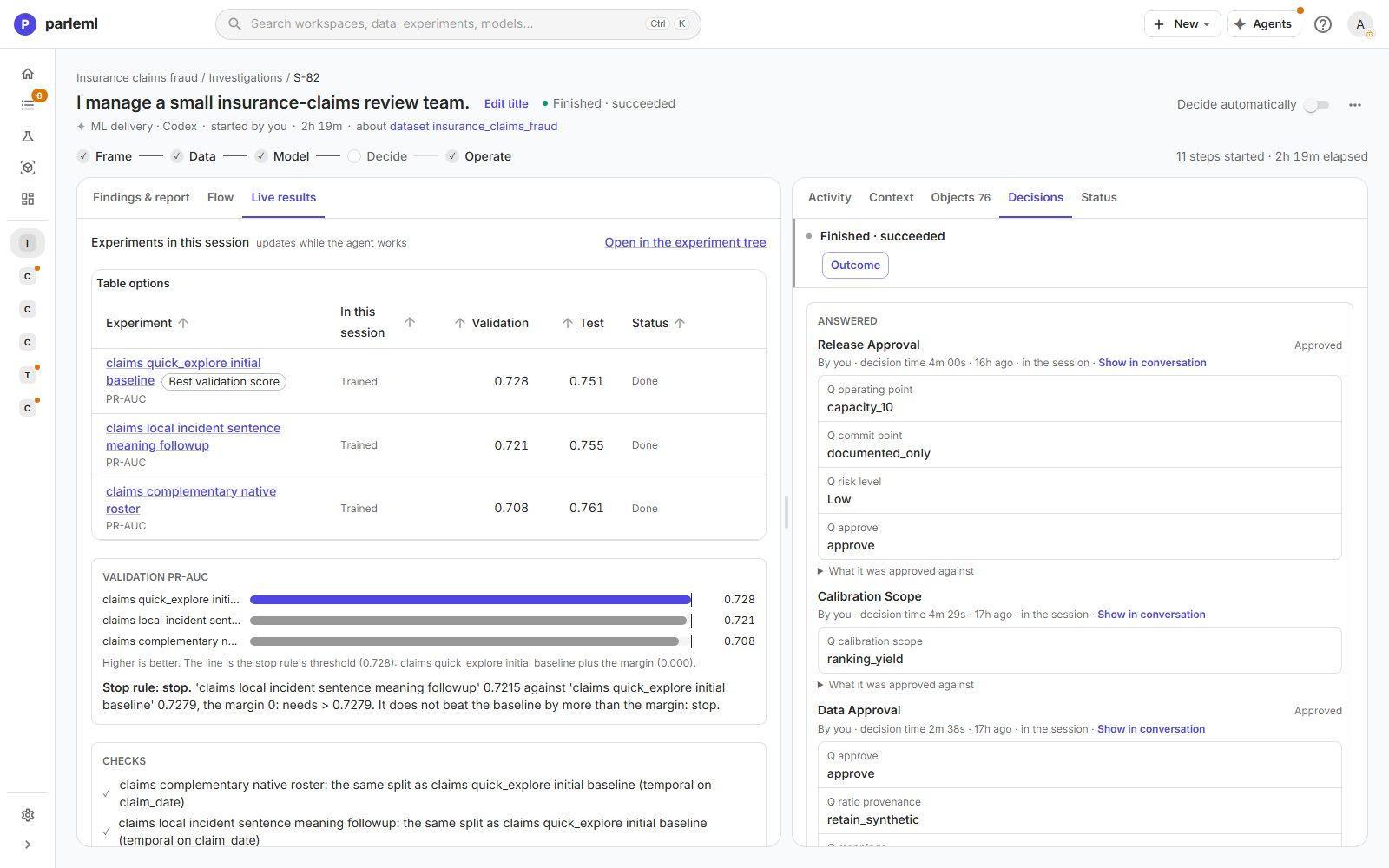
An answered decision keeps:
- each answer, for example operating point capacity_10, commit point documented_only, risk Low, approve;
- who decided and how long it took;
- What it was approved against: a snapshot of the evidence at that moment.
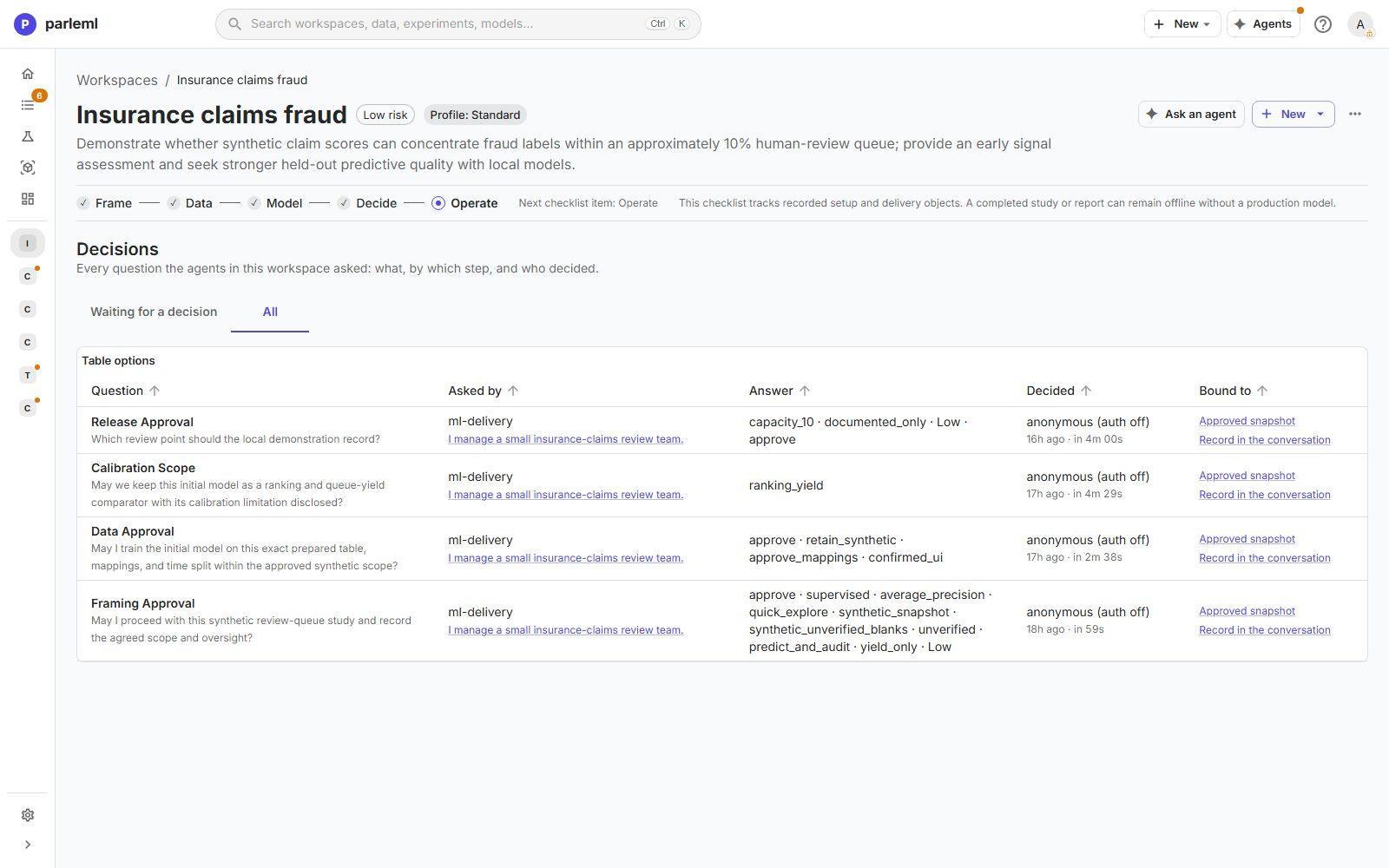
The workspace's Decisions page lists them all, with the step that asked and the object each one is bound to.
Decide automatically lets an agent go on without asking. It is off by default, and a profile can allow or forbid it.
Steer, pause and resume
A follow-up message can ask for an explanation or a narrower investigation without another fit.
A session can pause on its own. The banner says why:
- Paused · provider limit: the agent's account reached its usage limit. The banner shows when the limit resets. Choose Resume now, or turn on Resume automatically when the limit resets. Starting new sessions does not clear the limit.
- Paused · sign-in needed: the agent's sign-in expired. Sign in again on the server, then choose Resume after signing in.
- Attempt limit reached: the attempt used its turn or time budget. Resume starts another attempt with a fresh budget, and what it completed is kept.
See Troubleshooting for the other cases.
Documents
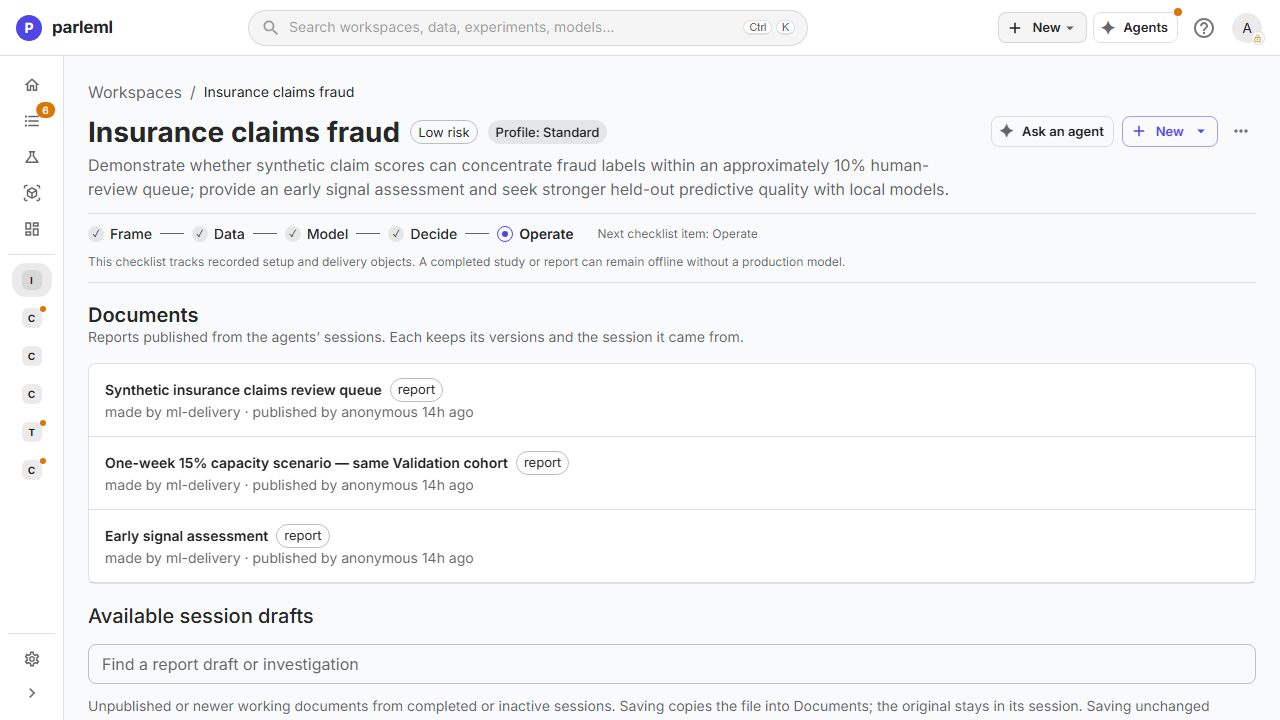
A session's reports, and an experiment's results, can be published to the workspace's Documents. Each document keeps its versions and the session it came from. Drafts from finished sessions are listed too, so you can save a good one.
Working without an agent
You can create every object an agent creates:
- a dataset (Add dataset);
- column roles and domains;
- a recipe;
- an experiment (New experiment);
- a comparison;
- a registered model.
You can continue an agent's workspace by hand, and hand a manual one to an agent at any point with Delegate or Ask an agent. The record is the same either way.
Next
- Your first agent session: watch an agent frame and train a model, and answer its decisions.
- Settings and agents: sign agents in and set the rules they follow.