Connect a database as a knowledge base
Time: about 15 minutes · You need: the database's address and a read-only account, and administrator access to save a connection. You'll end with: your tables in a workspace, the joins between them confirmed, and a training dataset built by SQL that is checked for leakage.
ParleML reads SQLite, PostgreSQL, MySQL, SQL Server and Oracle. A knowledge base is the set of tables a workspace can read, with their relationships and the queries (recipes) that turn them into training datasets.
1. Save the connection
You do this once. Every knowledge base can then use it.
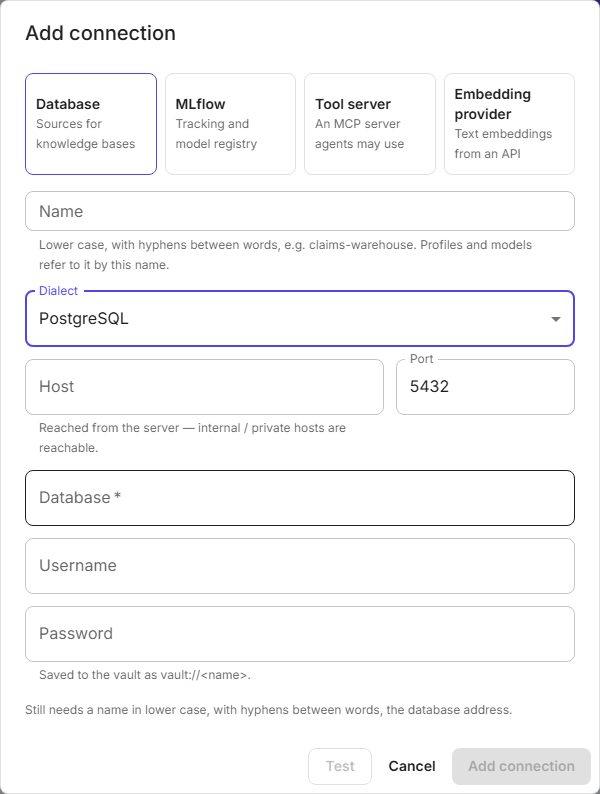
- Open Settings → Connections and choose Add connection.
- Choose Database.
- Give it a Name in lower case with hyphens, such as
claims-warehouse. - Pick the Dialect, then fill in Host, Port, Database, Username and Password.
- Choose Test, then Add connection.
The password goes to ParleML's encrypted vault. The connection keeps only a reference to it,
vault://<name>.
The ParleML server opens the connection, not your laptop. Internal and private addresses
work as long as the server can reach them. Use an account that can only read: ParleML runs
read-only SELECT statements, and a read-only account makes that true at the database too.
Details: other ways to connect
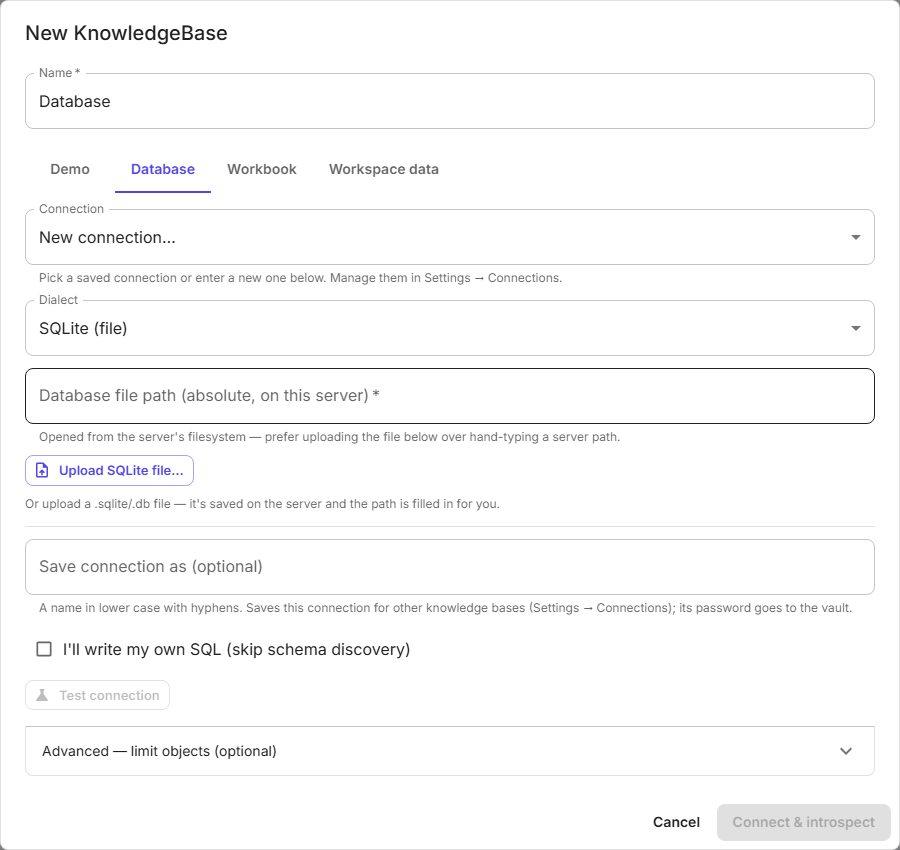
- SQLite. Give the Database file path (absolute, on this server), or choose Upload SQLite file… to put a file from your computer on the server.
- SQL Server. You can tick Use Windows authentication (trusted connection) and set an ODBC driver.
- From the knowledge-base dialog. You can type a new connection there instead. If it has a password, give it a name under Save connection as; ParleML saves it as a connection and keeps the password in the vault.
2. Create the knowledge base
- In the workspace, choose New → Knowledge base.
- Name it, choose Database, and pick the saved connection.
- Optional: open Advanced — limit objects (optional). Include or exclude tables and views by name pattern, then choose Preview matching objects. A large warehouse is easier to work with when you start from the tables you need. You can add more later.
- Choose Test connection, then Connect & introspect. ParleML reads each table's columns, types and keys.
If reading the schema is slow or not permitted, tick I'll write my own SQL (skip schema discovery). ParleML then only checks that it can connect, and you write the SQL yourself.
3. Choose tables and confirm the joins
- On Objects, tick the tables in scope. Only selected tables take part in relationship discovery and recipes.
- Choose Describe tables. An agent proposes a description for each table and column. Accept them table by table. They ground every SQL suggestion that follows.
- Open Relationships. Foreign keys the database declares are already approved.
- Choose Auto-discover to measure candidate joins by names and values, or Suggest relationships to ask an agent for a verdict with its reasoning. Approve or reject each one.
- Look at the Diagram view: the schema as an entity diagram. Its menu exports it as PNG or SVG for your documentation.
The knowledge bases section of the manual shows each screen.
4. Build a training dataset with a recipe
- Open Recipes and create a recipe.
- Give it a goal, the target, and the prediction moment: the point in time a prediction would be made. Or name an as-of column that holds it for each row.
- Write the
SELECT, or ask for a suggestion from the goal. - Choose Run preview.
- Read the point-in-time check. A column that could read rows dated after the prediction moment is a leak: the model would see the future. Fix the SQL before you train.
- Choose Materialise. The result becomes a dataset in the workspace, profiled like any other and linked to its recipe.
Later, Refresh dataset runs the query again and replaces the data in place. The dataset keeps its ID, so experiments that use it still point at it.
If something goes wrong
- Test fails for a server database. The ParleML server must reach the host and port.
Check firewalls, and that the database accepts connections from the server's address. In
Docker,
localhostis the container itself; use the host's name or address instead. - A table is missing. Check Advanced — limit objects and the account's permissions on that schema.
- "… is still used by …" when you delete a connection. A knowledge base reads from it. Remove that knowledge base first.
Next
- Your first model: train on the dataset you just built.
- Datasets and columns: roles, leakage checks and drift.