Settings and agents
In short
- Settings (the gear at the bottom of the sidebar) has seven pages in three groups: AI, Platform and System. Administrators see them all; everyone else sees Access only.
- Agents are command-line tools (Codex, Gemini CLI, Claude Code) that run on the server, signed in with a subscription or an API key. ParleML never stores or shows the key.
- A profile is the rule set for a workspace's agents: which decisions need a person, which agents and models, which skills.
- A skill pack holds the procedures agents follow. You can edit a shipped skill in place and reset it at any time.
| Group | Page | Use it to |
|---|---|---|
| AI | Agents | See which agent CLIs are ready, which model each tier uses, and the session limits. |
| AI | Profiles | Define the rules a workspace's agents follow. |
| AI | Skill packs | Read and edit the procedures agents follow. |
| Platform | Connections | Register the external systems ParleML talks to. |
| Platform | Access | See the sign-in mode, connect your own agent, and manage API tokens. |
| System | Workspaces & data | Name the lifecycle stages, turn automatic EDA on or off, and rebuild the catalog. |
| System | Diagnostics | Read versions, hardware, job slots and the models on this server. |
Agents
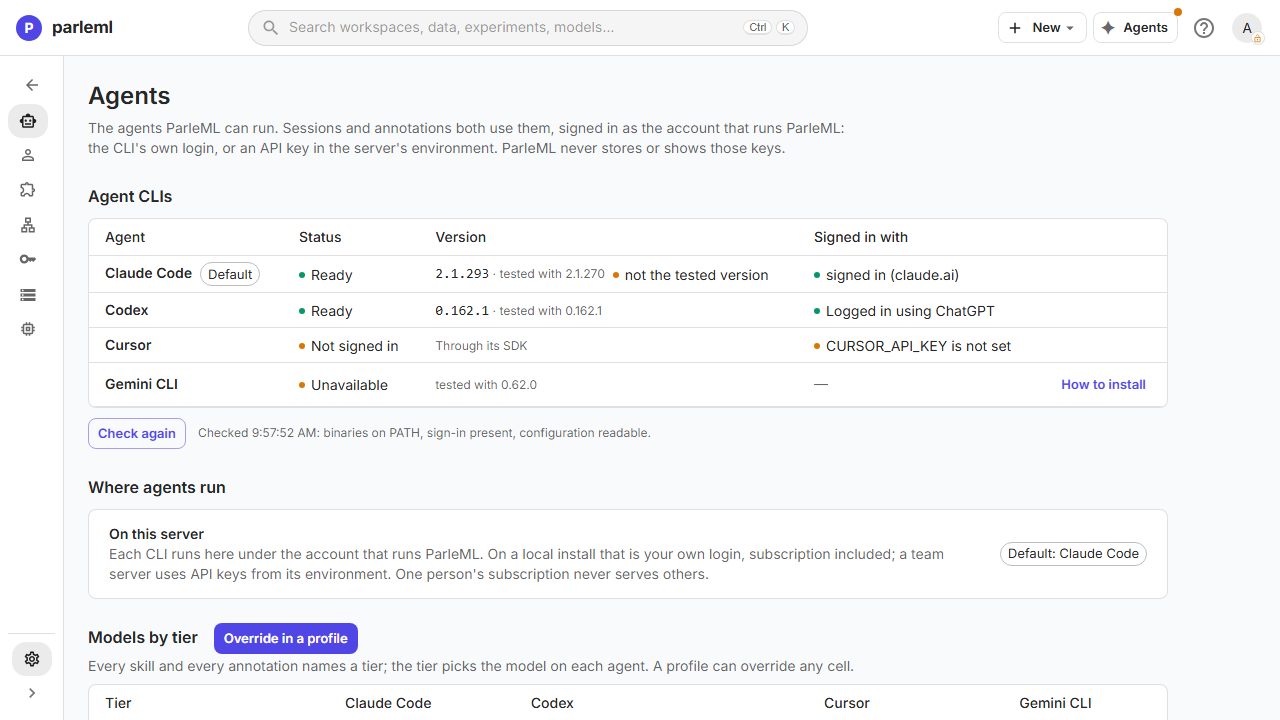
ParleML runs its agents by wrapping their command-line tools (CLIs): Codex, Gemini CLI and Claude Code. A CLI can run on the AI subscription you already pay for (a ChatGPT, Claude or Google AI plan), at a fixed monthly price instead of a per-token bill. A fourth agent, Cursor, runs through Cursor's SDK and works with an API key only.
The ParleML image includes Codex and Gemini CLI, and Codex is the default agent. Claude Code and Cursor come from the extended image (see Run ParleML).
-
Agent CLIs lists each agent with:
- its status: Ready, Not signed in, Not installed, Unavailable or Not in this build;
- its version, next to the version ParleML is tested with;
- Signed in with: where its credential comes from, never the credential itself.
Check again re-reads the installation. For an agent that is not installed, How to install shows the command to run on the server. - Where agents run. Each agent runs on the server, under the account that runs ParleML. The chip shows the default agent. - Models by tier. Every skill and annotation names a tier, and the tier picks the model for each agent. A profile can override any cell.
Tier Used for Fast Summaries, names, descriptions Default Most session steps, explanation narratives Strong Framing, challenge, decisions -
Limits. The installation caps the turns per attempt, the wall-clock time and the steps at once. They come from the server configuration, and a profile can change them for its own sessions.
Sign in with a subscription or an API key
Each agent needs a credential, and the credential decides whose account pays for the model. There are two ways to give it one.
A subscription login. Sign in once on the server, as the operating-system user that runs ParleML. The work draws on your plan, at no extra cost per token. For one person, this is usually the cheapest way to run agents: an ML session reads a lot of results, which adds up fast on a key. If the plan's usage limit is reached, the session pauses and can resume by itself once the limit resets (see Steer, pause and resume).
An API key. Set the key in the server's environment before ParleML starts. This is how a team server usually runs, and it is the only way for Cursor.
| Agent | Subscription login (on the server) | API key (server environment) |
|---|---|---|
| Codex | codex login, choosing ChatGPT to use your plan (codex login --device-auth in a container) |
OPENAI_API_KEY, CODEX_API_KEY or CODEX_ACCESS_TOKEN |
| Gemini CLI | Run gemini and choose Sign in with Google |
GEMINI_API_KEY or GOOGLE_API_KEY; or Vertex AI with GOOGLE_GENAI_USE_VERTEXAI=true, GOOGLE_CLOUD_PROJECT and Application Default Credentials |
| Claude Code | Run claude, then /login |
ANTHROPIC_API_KEY or ANTHROPIC_AUTH_TOKEN |
| Cursor | Not supported | CURSOR_API_KEY (from the Cursor Dashboard, under Integrations) |
In the Docker image, Run ParleML shows both ways step by step, and Install and operate ParleML shows how to keep a login across upgrades.
What to know before you choose:
- The account that runs ParleML pays. Every session on the server uses that login or key. One person's subscription never serves other people, so on a shared server use API keys that belong to the team.
- Check the source. Signed in with says where each credential comes from, for example signed in (claude.ai) or OPENAI_API_KEY is set. A cloud agent that is not signed in cannot be picked when you start a session.
- A key that is set counts as signed in. For Codex, Gemini CLI and Cursor, the check sees that a key is present, not that the provider accepts it. A wrong or exhausted key shows up when a session runs, as a failed attempt whose message names the fix.
- A successful login is not a successful session. After signing in, run the profile's preflight, then try a real session.
- Sign-in can expire mid-session. The session pauses with Paused · sign-in needed and names the fix. Sign in again, then choose Resume after signing in.
Keys are never entered in ParleML's interface. They belong in the server's environment, set by whoever runs the installation.
Details: what an agent process receives
- Keys stay out of sessions. An agent process receives only an allow-listed environment: system basics, its own credential variables and proxy settings. Nothing else from the server's environment reaches it. Keys come from the environment, not from the vault.
- Personal settings stay out. Codex ignores your own
config.toml, and Gemini CLI loads only the tool servers a profile grants, so your personal tool servers do not leak into a session. Your login still applies. CODEX_HOME. If you set it, set the same value when you sign in and when you start ParleML.
For credentials, preflight checks and recovery in full, see Credentials and logins and Recovery and resume.
Use a local model
A profile can run Codex or Claude Code on Ollama, or Codex on LM Studio, instead of a cloud provider:
- Open Settings → Profiles, then the profile.
- Under Runtime · agents, caps & skill pins, choose the Model provider and enter the server URL.
- Choose Check server and list models, then pick a Local model.
- Save, then choose Preflight saved profile.
Every tier uses the local model unless you override it. A local provider needs no cloud login; the workspace's agent picker checks its server and model instead. The Agents page still reports cloud logins only.
See Local models and Try a local agent on a laptop, including memory limits and a short CPU-only exercise.
Profiles
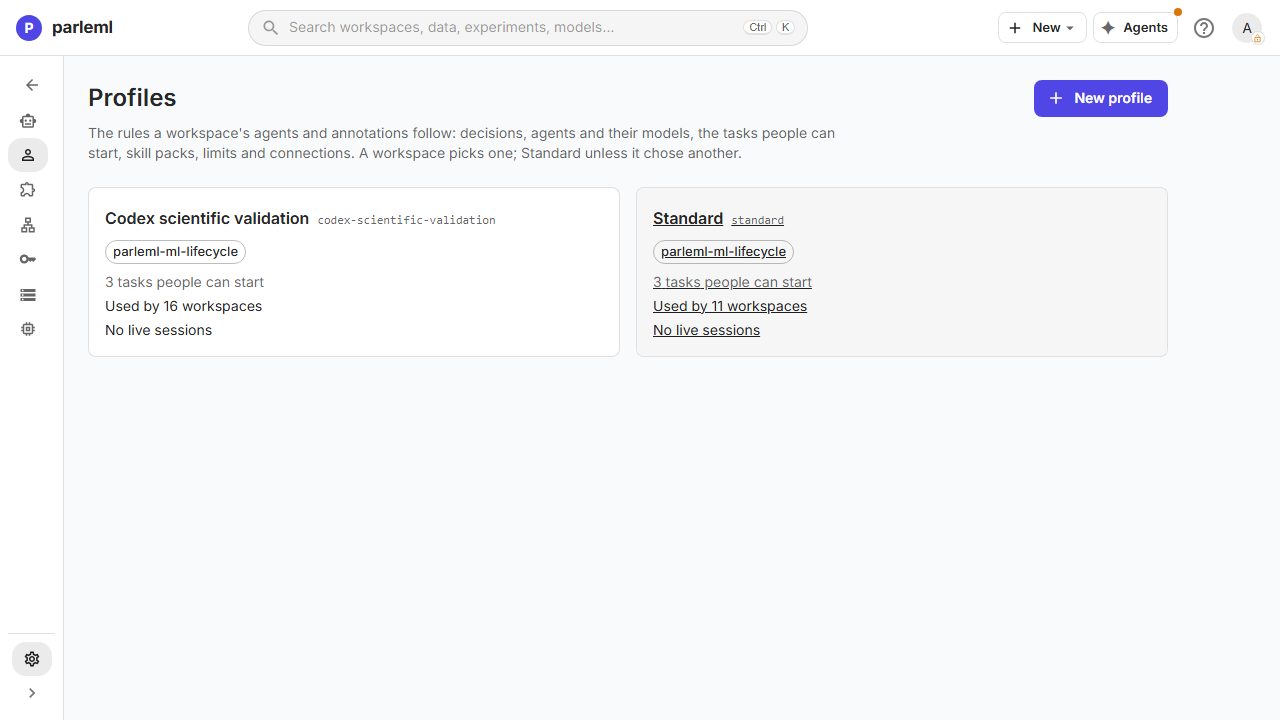
A profile is the complete rule set for a workspace's agents. A workspace picks one when it is created and can change it from its header. Standard is the protected default: it cannot be deleted or retired.
A profile defines:
- Decisions: which questions need a person, and whether Decide automatically is allowed. Keep it off unless the workspace's risk level justifies it.
- Agents:
- the default agent and the ones people may pick;
- the model for each tier (with effort and thinking settings), overriding the installation's choice;
- the caps on turns, time and steps at once.
- Per-skill agent pins: run one skill on a different agent. For example, an independent challenge on Codex while everything else runs on Claude Code. A pin sets only what differs from the profile.
- Workflow:
- the sessions people can start, chosen from skills that can lead a session, such as ML delivery, ML investigation and ML operate;
- the skill packs, in order.
- Connections and host assets: the tool servers the profile grants (each with parameters that narrow it), and the rules and hooks its packs bring to each agent.
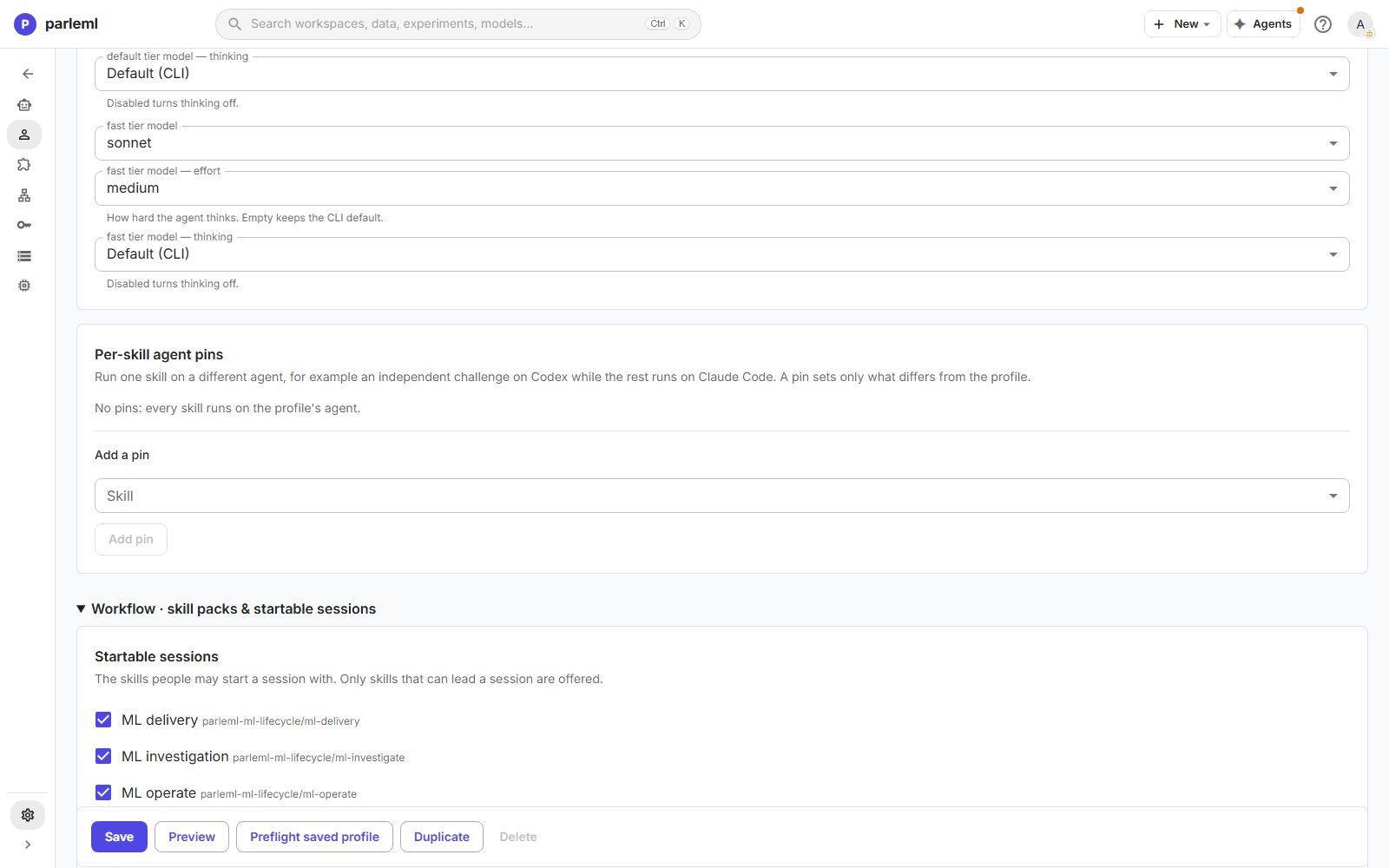
The actions at the bottom of a profile:
- Preview shows the resolved profile a session would receive, with its checks.
- Preflight saved profile confirms that every agent it uses is signed in and every connection answers.
- Duplicate makes a variant.
- Retired hides a profile from new workspaces and keeps its history.
Saving is protected against overwriting someone else's edit. The page says how many workspaces use the profile and whether sessions are live.
Details: account apps and your own settings
Under Advanced · connections & host assets → Host assets, Include account apps (Codex and Claude Code) is off by default, separately from Include my own settings. Turn it on when a workflow needs apps connected to the server's agent account. Login, provider and tool permissions still apply. Configured connections, skills, rules, hooks and built-in tools are kept either way. See context isolation.
Skill packs
A skill pack is a packaged set of procedures that agents follow. ParleML ships the parleml ML lifecycle pack: frame a problem, shape and check the training table, run a baseline, iterate one change at a time, challenge the candidate, choose the operating point and register the model, with people approving each step. It also covers investigation and drift checks. The skills drive ParleML's tools and never write modelling code.
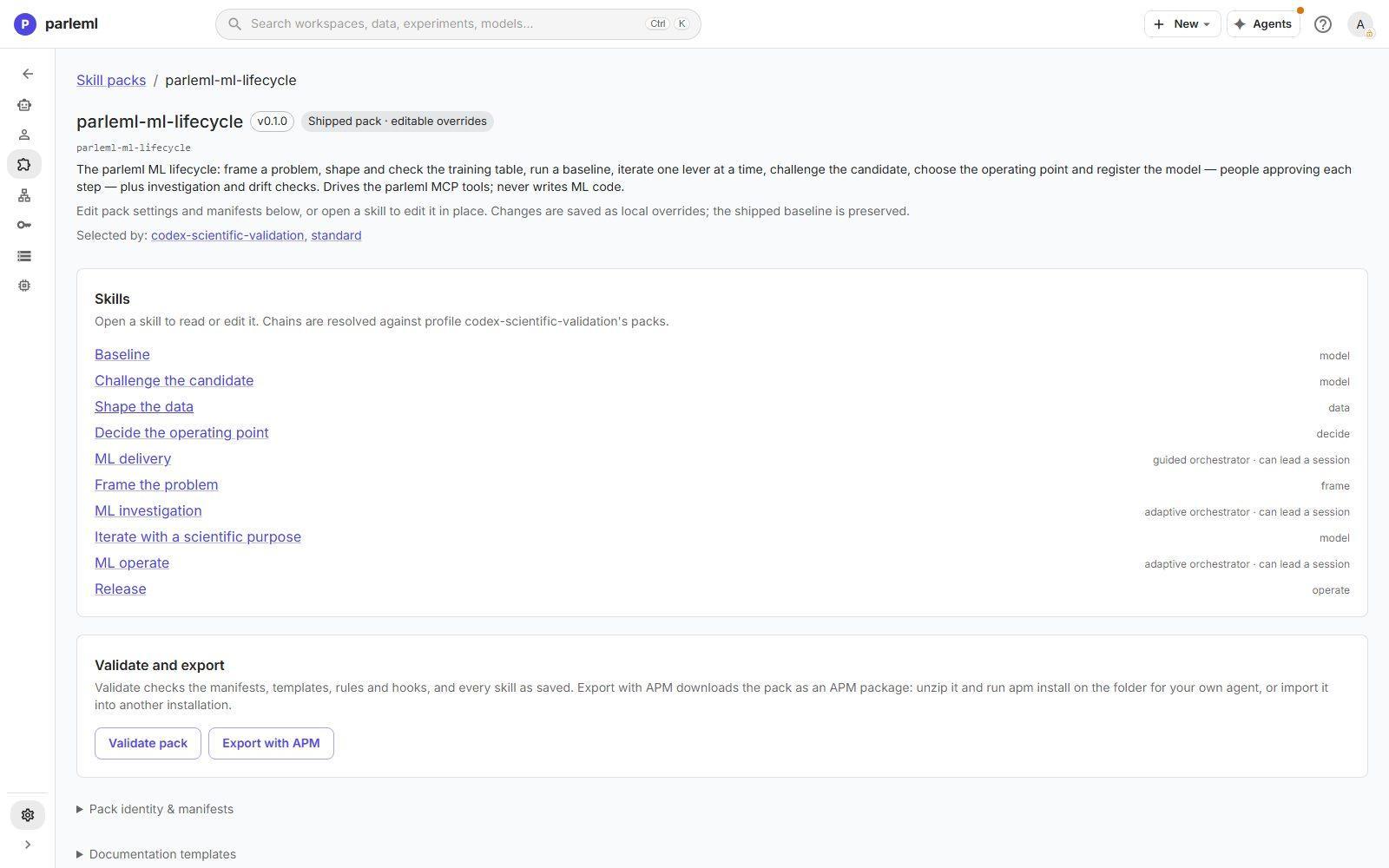
A pack page lists:
- Skills, each with its lifecycle stage. The shipped pack has:
- Frame the problem, Shape the data, Baseline, Iterate with a scientific purpose, Challenge the candidate, Decide the operating point and Release;
- three orchestrators that can lead a session: ML delivery (guided), and ML investigation and ML operate (adaptive).
- Validate pack, which checks the manifests, templates, rules, hooks and every skill.
- Export with APM, which downloads the pack as an APM package for your own agent.
- The pack's identity and manifests, Documentation templates, host rules and hooks, and the full file inventory.
Edit a skill
Open a skill under Shipped with ParleML to read or edit it in place. Saving keeps your version beside ParleML's, with the same identity and the same profiles using it. Reset to shipped goes back at any time. If ParleML later updates a skill you edited, it tells you under Needs you; Review changes shows the difference, and you can Merge into draft or Keep mine.
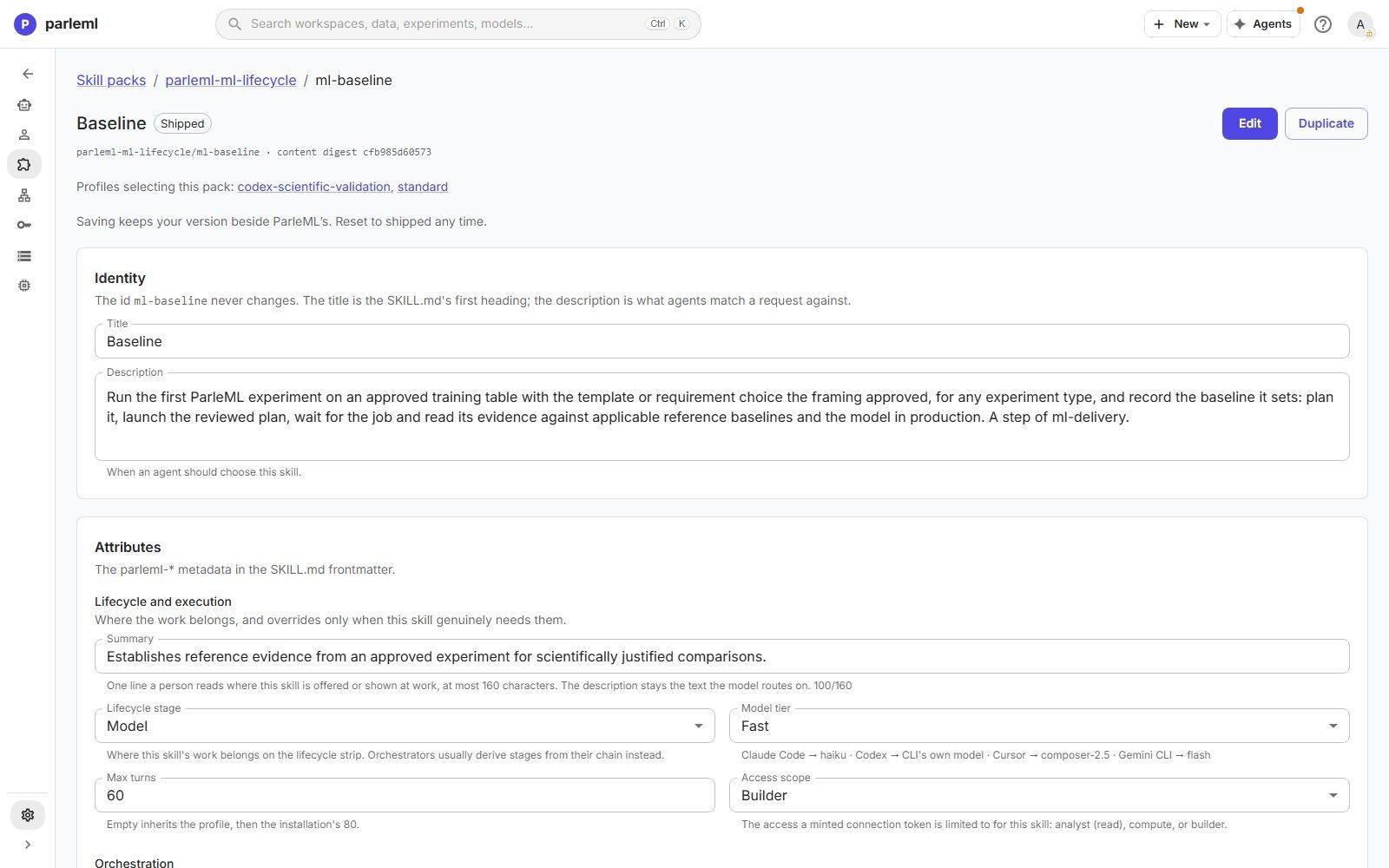
The skill page has:
- Identity: the Title, and the Description agents match a request against.
- Attributes:
- a one-line summary for people;
- the lifecycle stage;
- the model tier, showing which model each agent will use;
- a turn limit;
- the access scope of the token the skill gets: analyst, compute or builder;
- orchestration: whether the skill follows a guided chain or adapts.
- SKILL.md: the instructions themselves, and the skill's other files.
- A flow schematic of its steps, the documentation templates it writes, and Recent results: the outcomes sessions reported when they ran it.
Under Your packs are packs this installation added. A pack does nothing until a profile selects it. Use Create a new pack or Import a pack to add one. For a new skill, Draft with the assistant proposes the whole skill for you to review. See Add a skill pack, Configuring agents and Skill attributes.
Connections
A connection is an external system ParleML talks to. Add connection starts by picking its kind:
| Kind | What it is |
|---|---|
| Database | A source for knowledge bases. See Connect a database. |
| MLflow | A tracking server and model registry. An installation has one. See Track a run in MLflow. |
| Tool server | An MCP server that agents may use when a profile grants it. The built-in parleml server is one. |
| Embedding provider | Text embeddings from an API. |
The table shows each connection's name, kind, address, status and what uses it. Secrets live in the encrypted vault, and a connection only refers to them. A connection that something uses cannot be deleted.
Workspaces & data, and Diagnostics
Workspaces & data names the lifecycle stages shown on workspace strips, turns Run EDA automatically after a dataset is added on or off, and shows the Data root and the Catalog totals, with Rebuild for the catalog. See Access, permissions and data.
Diagnostics is read-only. It shows the versions, the hardware (cores, memory, GPU), the job slots for each kind of work, the sign-in mode, any optional packages that are missing, and the Models on this server: embedding models and foundation engines, and whether each one is cached or downloads on first use.
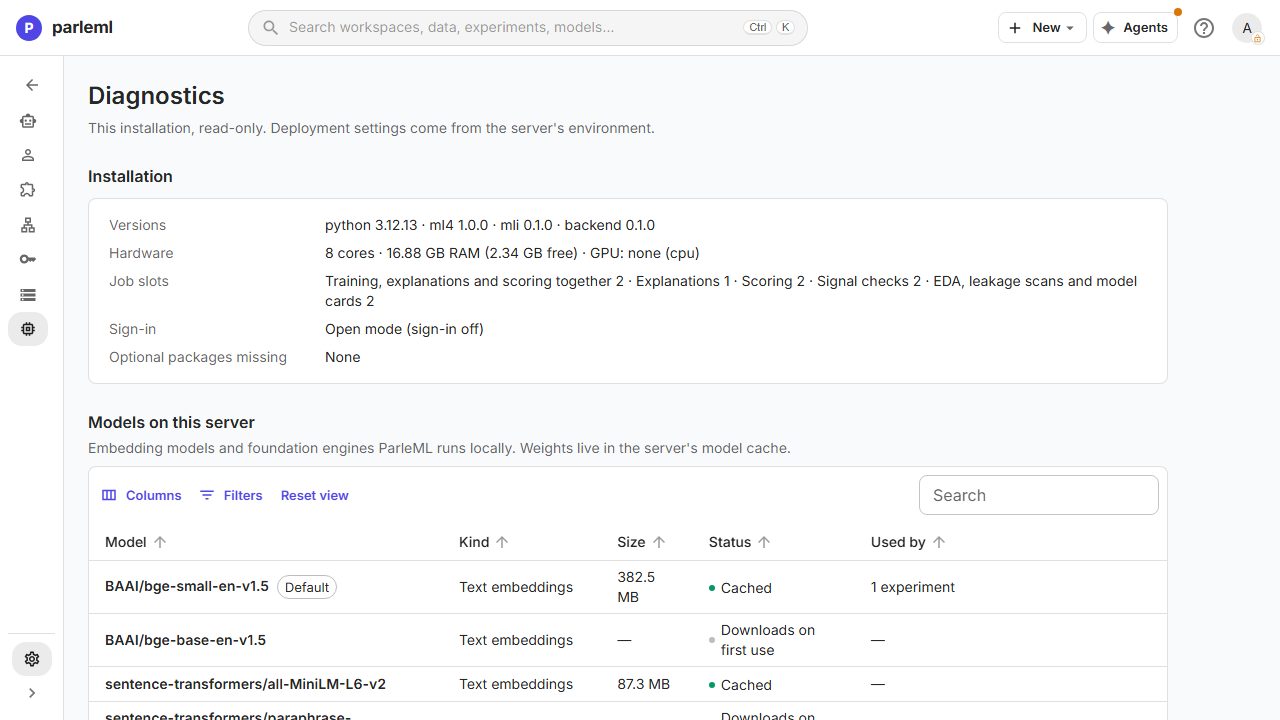
Check Diagnostics before you launch an experiment that needs a foundation model or text embeddings. Cached weights do not prove that the server has the memory to use them.
Use ParleML from your own agent
Use ParleML from your own agent, in the ? menu, opens Settings → Access → Your own agent. It has ready configurations for Claude Desktop, claude.ai, Claude Code, Cursor, ChatGPT, Codex, Gemini CLI and Local (stdio), and an HTTP API example. Your agent reads results and runs read-only SQL. With a builder token it also builds in the workspaces you choose. See Use ParleML from Claude Code, Access, permissions and data and the agent connection guides.
Next
- Access, permissions and data: who can do what, and where everything is kept.
- Install and operate ParleML: run ParleML for a team.